

With all the reasons to work remotely you need a system to keep you connected with your teammates. We’ve taken a moment to outline 4 tips to make your work from home experience great!
4 Best Practices for Working from Home with Microsoft Teams
Make the Most of Meetings
Use the chat feature to share reminders with attendees or pre-read documents to your audience before the meeting.
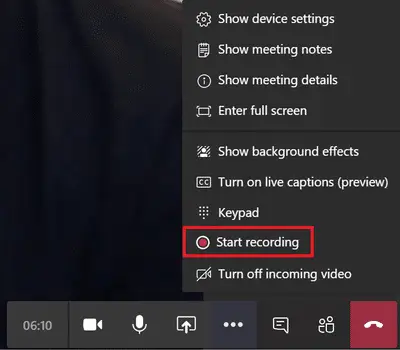
Record the meeting if that’s acceptable in your organization. Your recording will save to OneDrive for Business for easy sharing and future use.
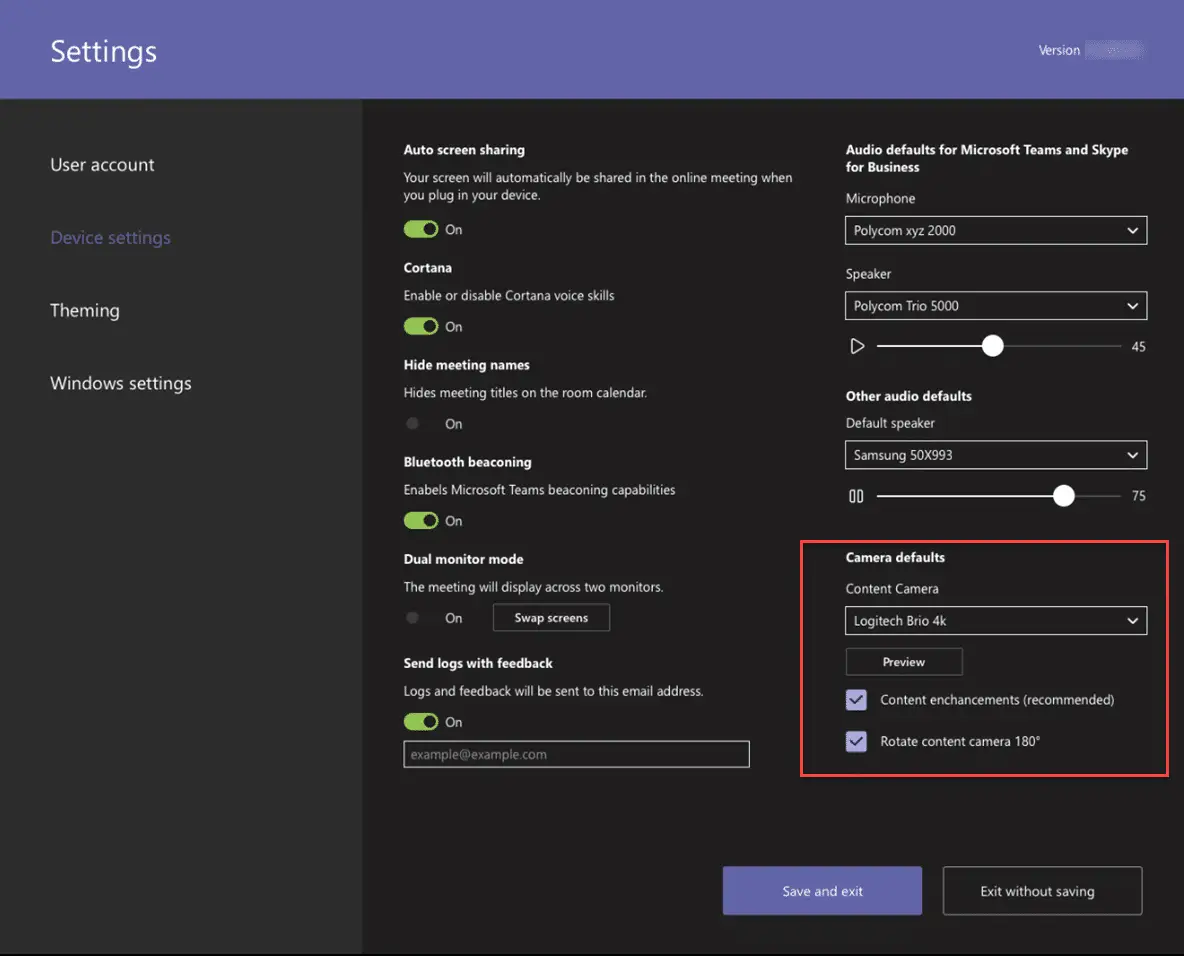
If you have one of the new Teams Room System content-capture cameras (“magic whiteboard”), you can use it to bring your physical whiteboard into the meeting. At WheelHouse IT we love whiteboards! They are painted on the walls in every office. (Although, they are not magical like the one described above.)
Be Inclusive and Use Your Video
When you’ve got robust bandwidth, turn on your video. Tip: Use background blur if you don’t want your background to be a distraction. Video really amps up collaboration in meetings (but if you’ve got limited bandwidth, turn off video to maintain high-quality audio). Make sure you know how to join a meeting in Teams before the meeting starts.
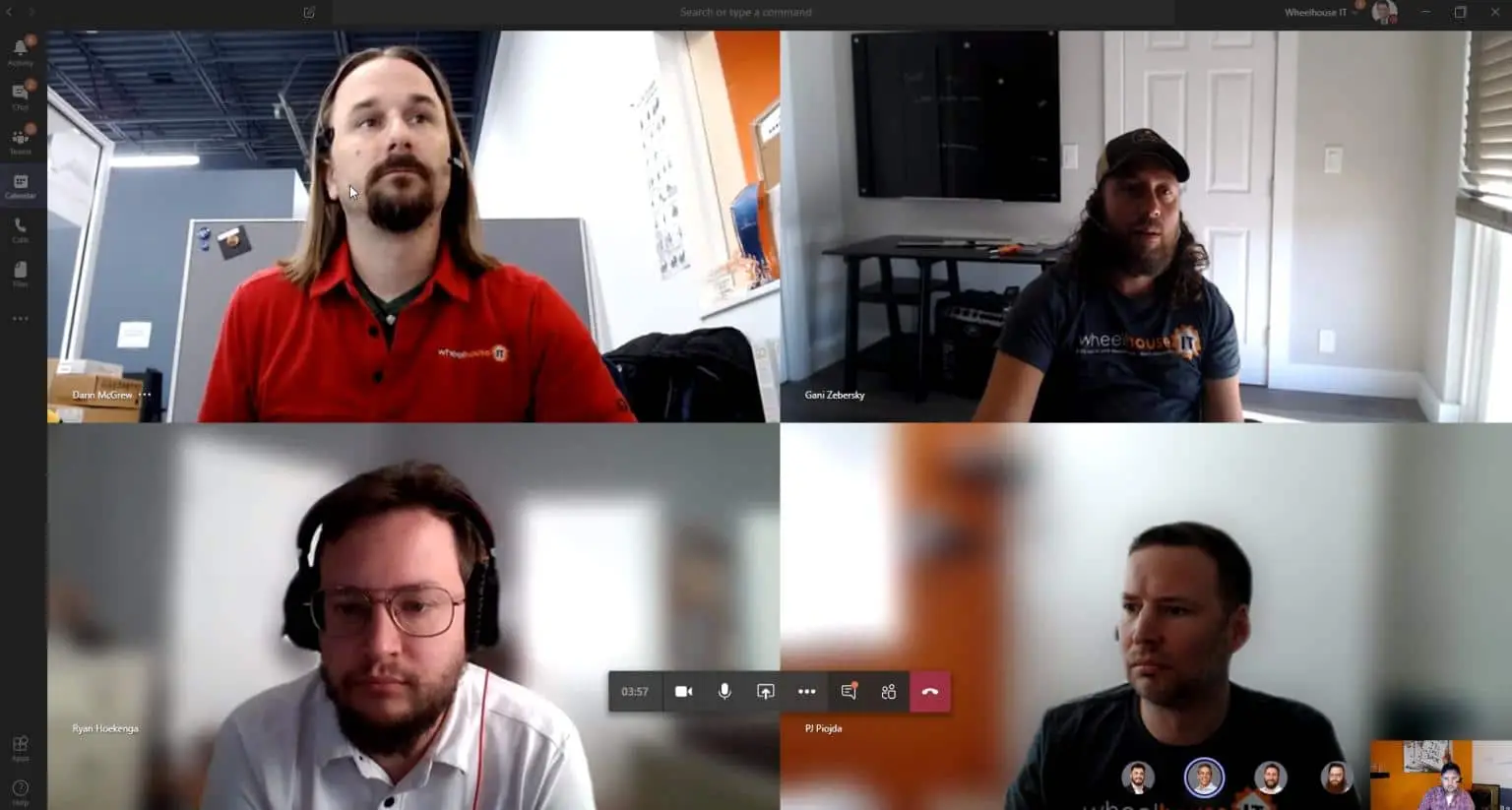
We often see participants attempt to speak to the group only to realize they’re on mute. Don’t forget to double check before you start talking. 😉
Track Notes and Action Items, Share Frequently Used Documents
Take notes and share follow-ups in chat. It’s harder to get a casual recap in the hallway when there is no hallway. Use an app like Planner, Asana, or Trello to track tasks. At WheelHouse IT we use Asana and Planner, both integrated right into Microsoft Teams!
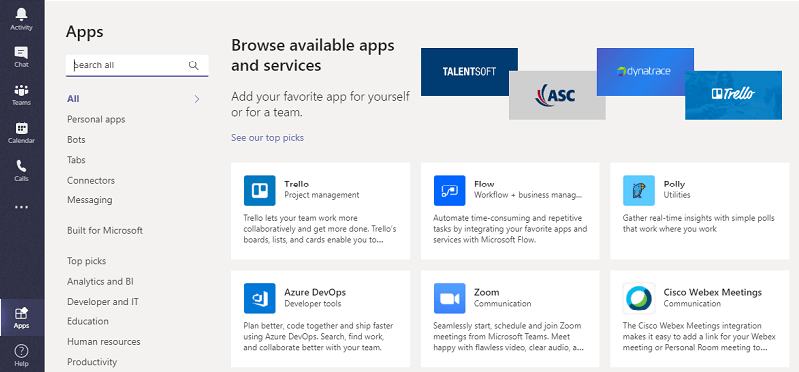
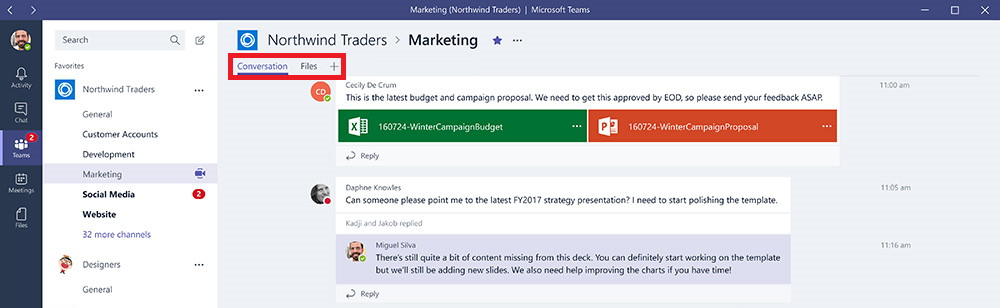
Customize Your Virtual Workspace
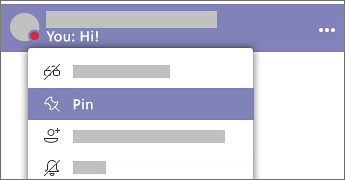
Pin your favorite 1:1 or group chats so they always appear at the upper left.
Manage notifications in your Profile Settings so you’re only getting them when you want to.
Be it you’re new to remote work, temporarily working from home, or on an extended leave, Microsoft 365 and Teams are designed to keep you productive from anywhere.
Get the Most Out of Microsoft Teams for Your Business
Microsoft Teams is one of the most powerful remote work tools available today, but knowing which features to lean on makes all the difference. Whether your team is fully remote, hybrid, or just getting started with collaborative tools, having the right IT support in place ensures your people stay connected and your business keeps moving.
At WheelHouse IT, we help businesses across South Florida, New York, and Los Angeles set up, manage, and get the most out of their modern workplace technology every day. From Teams configuration to full managed IT services, we’re here to make sure your remote work setup works as hard as you do.
Ready to level up your team’s collaboration? Contact us today to find out how we can support your business.