

With the massive shift to working remotely, it can be tricky to separate when your work day begins and when it ends, making it increasingly challenging to stay organized and on top of what matters while also balancing personal commitments. Outlook can be used as your personal organizer to help you balance that blurring line.
Take control of your (whole) day
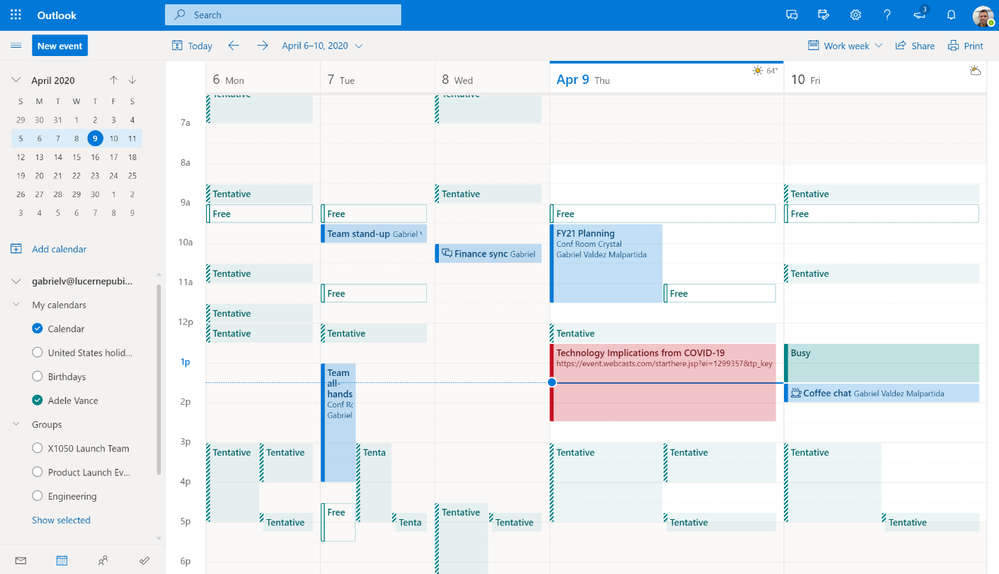
Managing your commitments alongside those of your friends, family, and colleagues is a little easier when you can see their availability next to yours. Whether it’s your manager’s, a co-worker’s, or your kid’s calendars, it’s easy to add or share calendars in Outlook so you can see it all together.
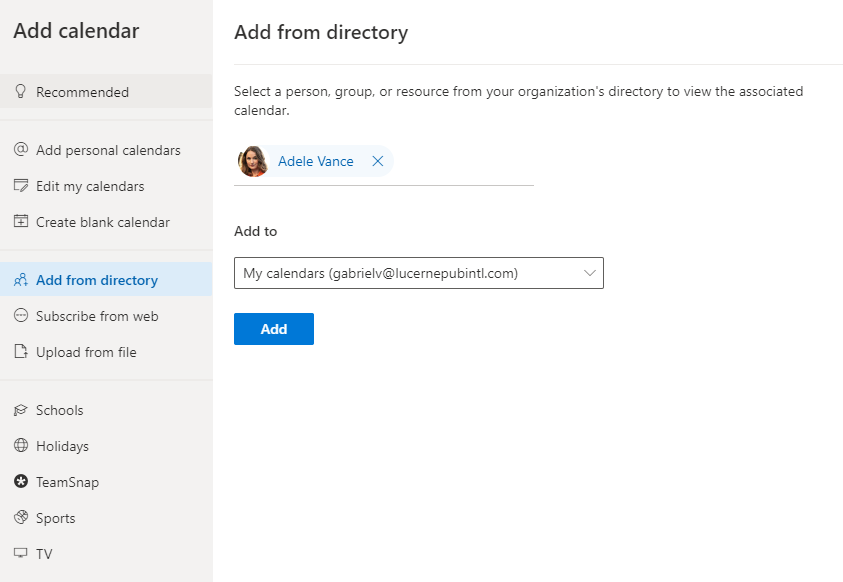
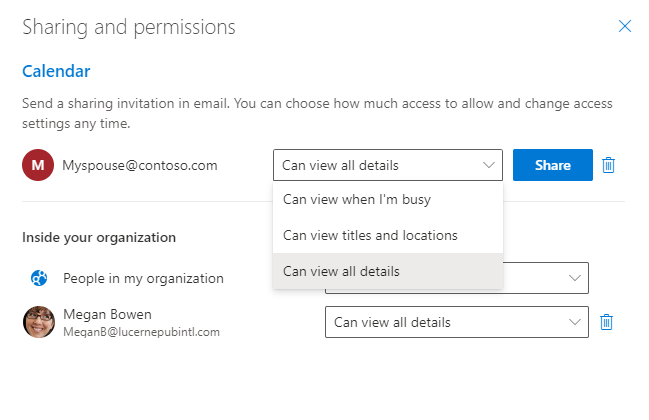
You can also share your schedule with someone outside your organization, or they can share their personal calendar with you.
This is very useful if you want someone in your family to have access to your work schedule so they know when you are available, or if you want to create events from your Outlook calendar in that person’s calendar — like adding your kid’s online classes to your partner’s calendar. You are in control of the amount of information you share about the events on your calendar.
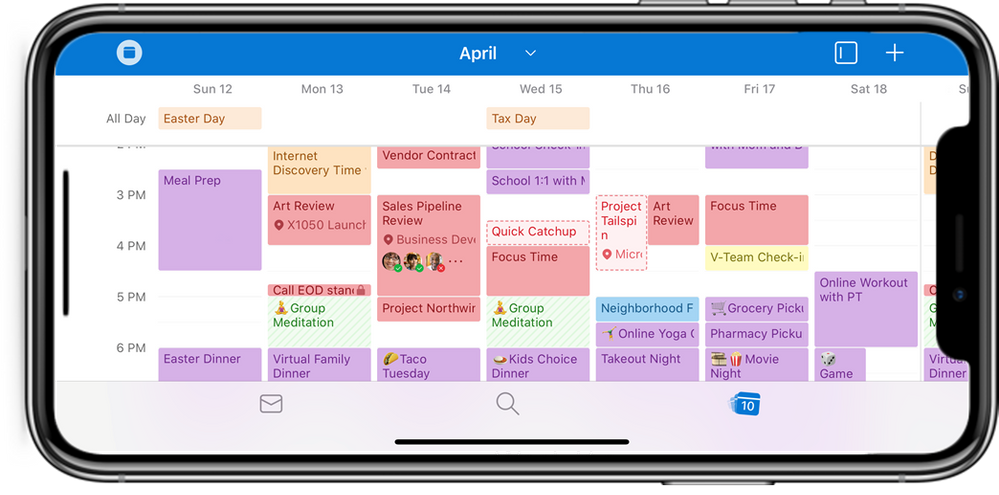
Now you probably have personal commitments that happen during typical work hours and you might need to stay on top of work items while not at your home desk. To aid you in these situations, Outlook allows you to keep your important information in one place in a helpful way for you to organize all your commitments and communications and stay in control of the time you do have.
With all your personal, work, and school accounts together in one app, you have easy access to your emails, contacts, files, and calendars at your fingertips so you can choose how you manage and view your day almost anywhere you are.
It’s understandable that it’s a priority to dedicate time for yourself and to friends and family, but that can be difficult when you are constantly next to the digital tools that help you stay connected — which has been proven to cause distractions.
You can manage these distractions by scheduling focus and quiet times. Set your working hours and silence notifications when you need to — for both personal communications and work commitments. Control the time when you don’t want to be disturbed with notifications of new emails, and let your colleagues know when you are available for meetings in Outlook by setting your work hours and location.
Stay on top of what matters
On top of everything you are already doing, you also need to juggle working from home alongside all-day parenting and personal commitments — so there’s a lot to stay on top of.
Managing your tasks and to-do lists can be a little tricky, but now that Microsoft To Do and Outlook are connected, it’s a little easier. Here are a few ways these connected experiences help you stay organized.
Create your shopping list in Outlook and manage it there or in the To Do app. You can share it with someone else and even assign them a task to lighten your load.
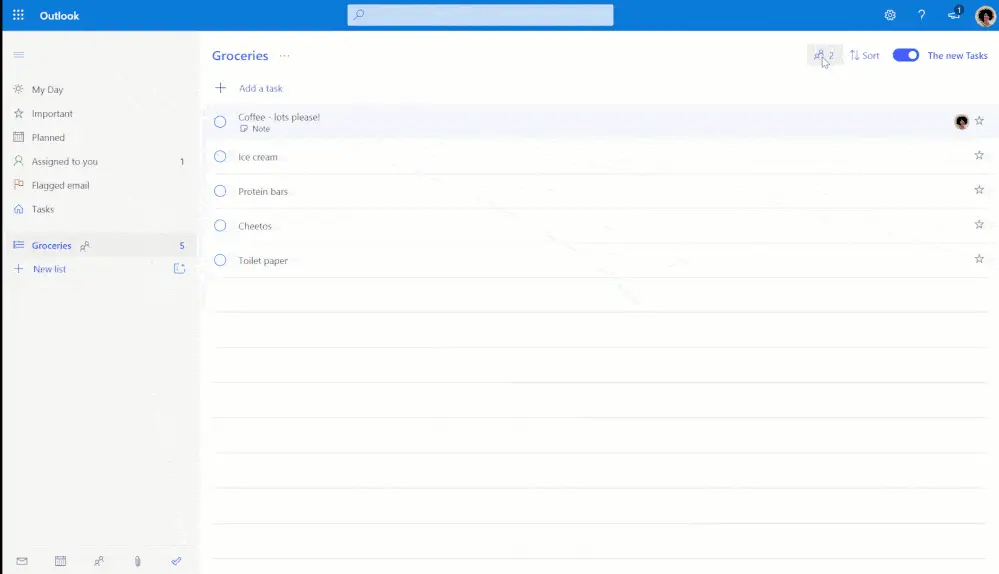
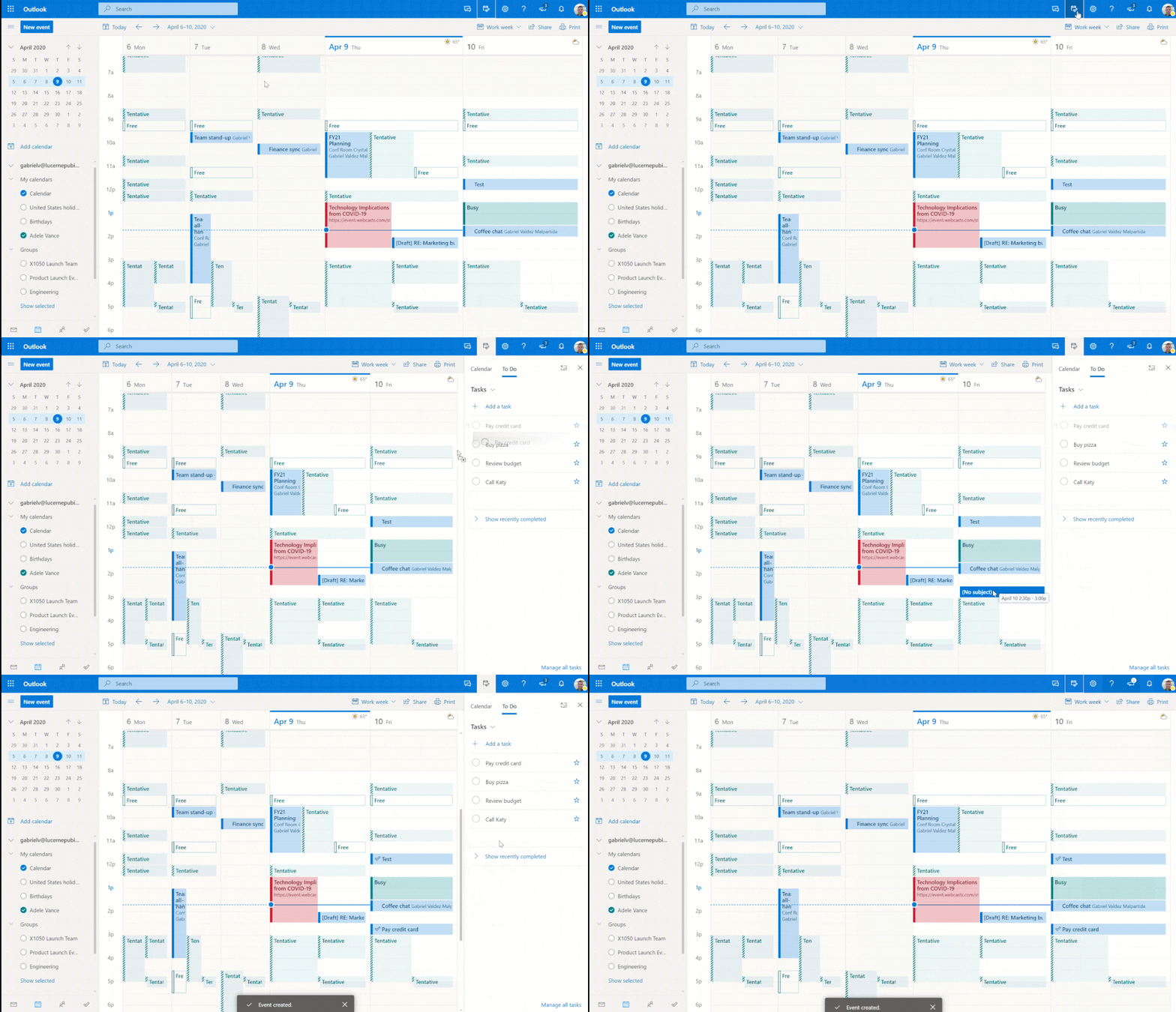
Turn an email into a task or an event by dragging and dropping it into My Day or flagging it in your email message list. In To Do, you can find a “Flagged emails” list among your tasks to help you prioritize and check things off.
.gif "Combined-Drag-And-Drop (1)")
You can also drop tasks from My Day into your calendar to create events, which can help you plan and carve out the time to complete them.
Many of the things you need to stay on top of come to your email, and there’s a way to catch up with what’s new in your inbox when you’re busy doing other things — Outlook mobile lets you keep your hands free while you listen to and respond to new email messages on the go, so you can get other things done while staying connected to what matters.
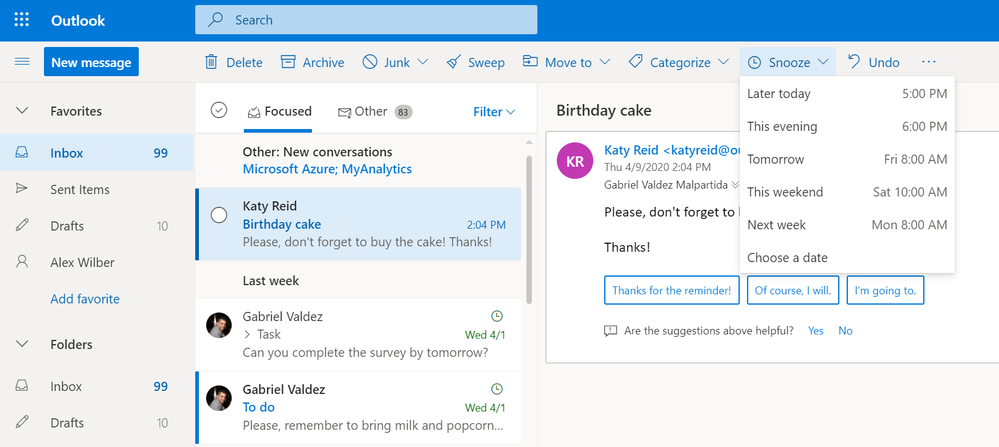
But sometimes it’s just better to plan to respond to certain emails at a later time, read a document before a specific meeting, or take more time for a detailed response to an important message. To avoid losing track of that kind of message, you can Snooze it and schedule it for when you have more time.
Snoozing an email will remove it from your inbox (but you can still search for it) until the time you schedule it to come back to the top of your inbox as an unread email with a new “received” timestamp and an icon indicating that it was snoozed.
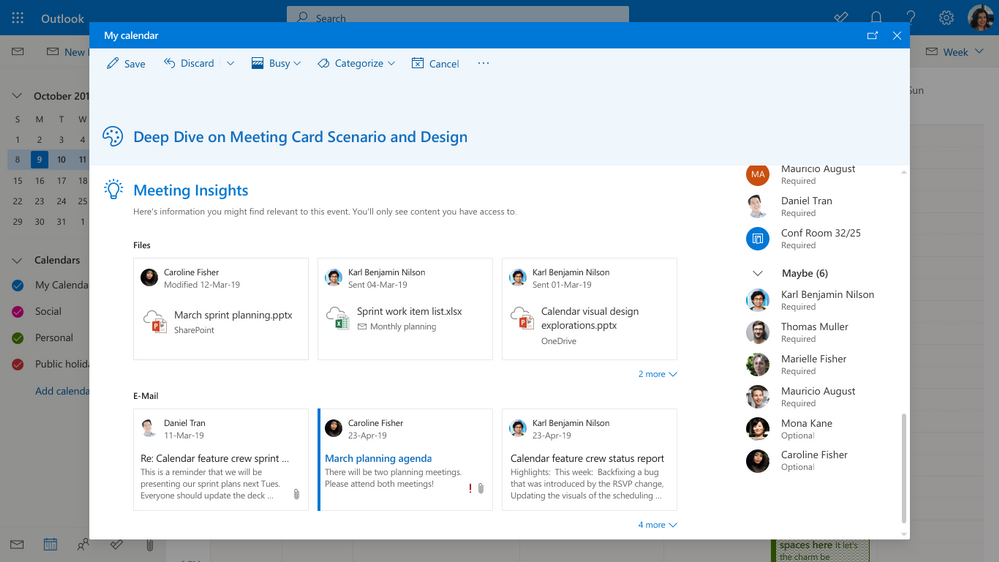
It’s understandable that some meetings require preparation, so having quick access to related emails and documents can help you get ready — but taking time to search for what you need may take you away from more important things. With Meeting Insights, Outlook gathers the information you might need for your meetings and brings it together for you in the meeting event on your calendar, in My Day, or in the meeting reminder. No need to spend time looking for what you need.
Stay connected
Whether it’s at work or with your favorite people, staying in touch is important. Get your team on an informal video call or organize a video get-together with your friends. You can use Microsoft Teams, or most third-party providers.
When you create a meeting event with someone, Outlook can automatically make it an online meeting — no more asking to add a Teams meeting after the invite was sent.
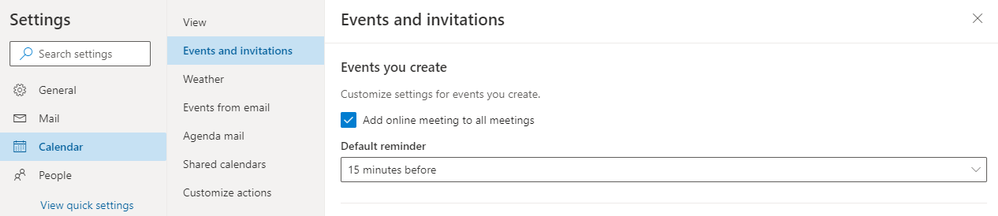
Or you can manually create an online meeting using Teams, Skype, or any supported audio and video provider. When you use your work account and have Teams or Skype, you can easily add an online meeting and Outlook can even suggest a time when everyone is free.
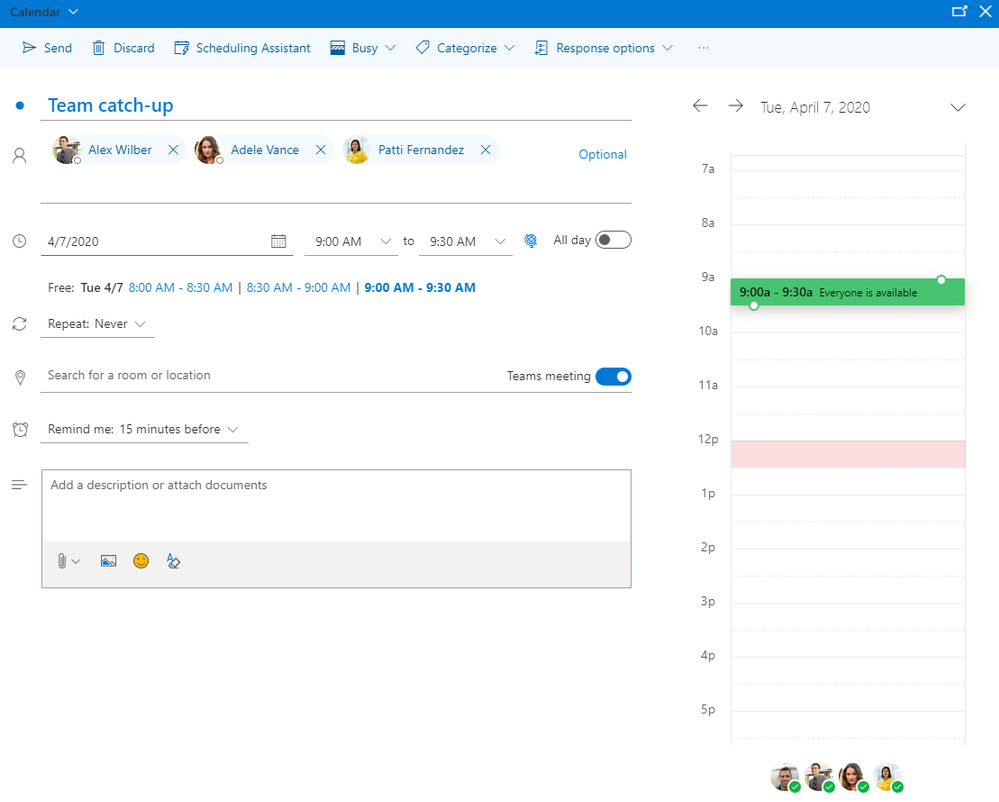
We all have that person — or persons — within the organization that you can’t miss an email from. You can create rules to deal with those important people in Outlook, or you can add them as favorites. It’s a simple way to always have quick access to their messages and set your preferences so that you get email notifications only from your favorites. Just add someone as a favorite from the People card in Outlook or by clicking “Add favorite.”
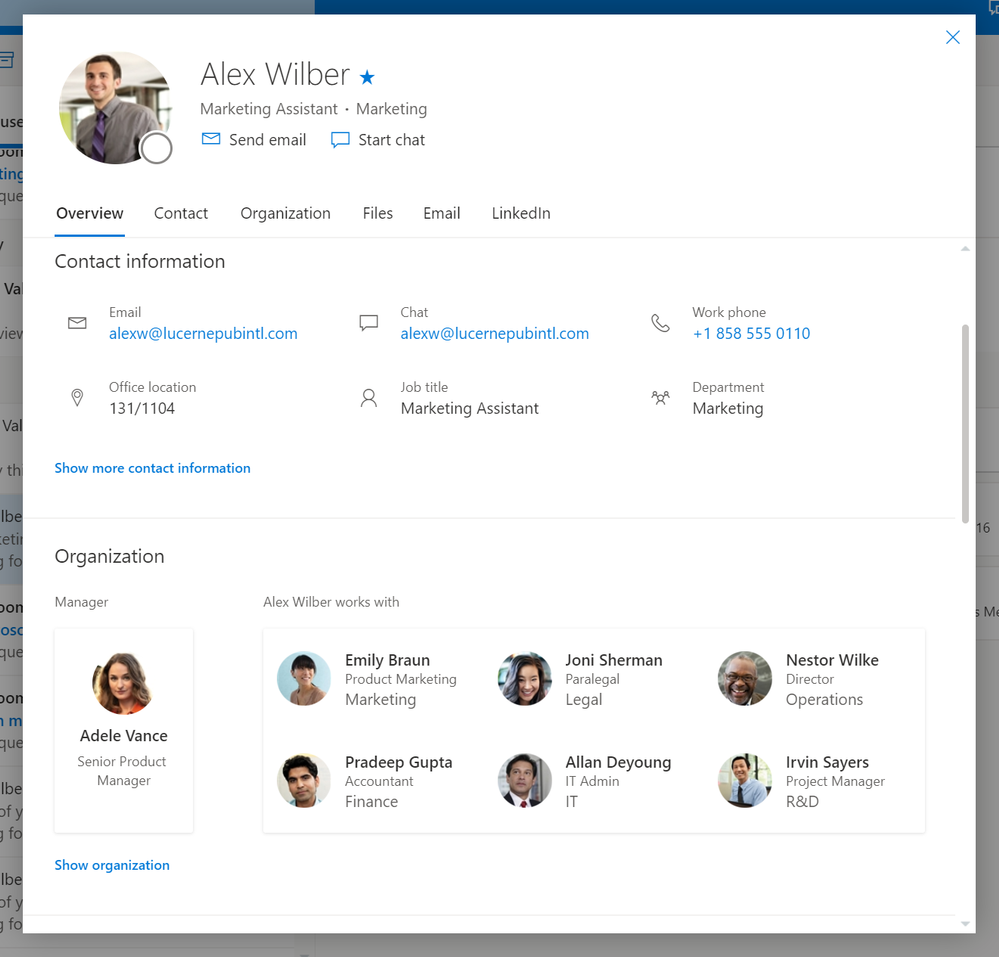
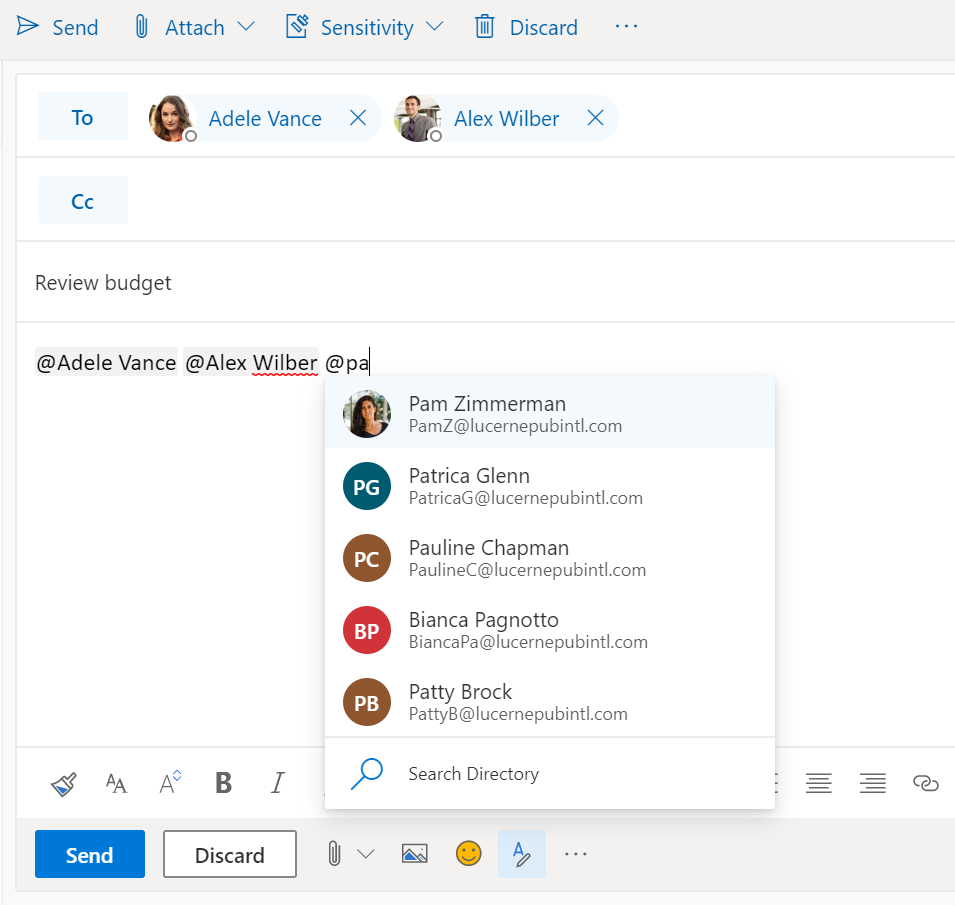
Most of us receive and send a lot of email messages in a day. Some are important, some are informational, and in some we are asked — or ask someone — to do something. A great way to get someone’s attention in an email message is to tag them with @theirname — that way they will quickly know there is an action item for them. You can also save time and stay connected to what’s important by filtering your inbox for messages where someone @mentioned you, to get a preview of which messages require your attention.
If you want to learn about additional capabilities in Outlook, check out the help resources for Outlook for iOS and Android and Outlook on the web, or find more Outlook training tools here.
Microsoft is committed to continue exploring additional opportunities to help you manage your time. Share your ideas directly via the Microsoft Feedback Portal.
Get More From Your Microsoft 365 Tools
Outlook is just one piece of the Microsoft 365 ecosystem — and when your team is set up and using these tools correctly, the productivity gains are real. At WheelHouse IT, we help businesses across South Florida and New York make the most of their Microsoft investment, from setup and licensing to ongoing support. Reach out to our team to see how we can help.