Your business landscape has changed, and while it may not be permanent, some good things may have come out of it. Microsoft’s Live Event function is the online equivalent of an auditorium: one or a few people communicate to a large group, managing the full event experience and controlling the content that is shared. Attendees can watch the event, ask questions, and share in conversation with each other.
Microsoft has made it easy to host these events, and it’s built right into the best productivity and collaboration platform available: Microsoft Teams.
When hosting a live event in Microsoft Teams, you have the ability to schedule and produce events for large online audiences. Live events use video and interactive discussion to host organization-wide employee briefings or virtual council meetings, and can be as simple or as sophisticated as needed. Up to 10,000 attendees can participate in real-time from anywhere, across devices — or catch up later with the event recording, which features automatic transcription and search.
How Do You Set Up a Live Event in Teams?
Plan the Live Event
Just like an in-person gathering, a live event works best when properly planned ahead of time. Based on your needs, you can consider hosting a lightweight event using a simple laptop and webcam setup and invite presenters to participate using their own devices (like a webinar), or opt to use a professional camera and sound setup (think of a church service or conference at a convention center). To ensure a seamless experience for your attendees, you should also proactively assign roles to various participants.
If you’re still building out your overall virtual meeting strategy, it’s worth reviewing some best practices before going live for the first time.
Some roles to consider are:
Organizer
Schedules a live event and ensures the event is set up with the right permissions for attendees and the event group who will manage the event.
Producer
Manages a live event, making sure attendees have a great viewing experience by controlling the live event stream. Responsible for starting and stopping the live event and switching between presenters. Having a person dedicated to the producer role ensures that presenters are not burdened with managing the event, and allows presenters to leave after they are finished presenting.
Presenter
Shares audio, video, or a screen to the live event.
Moderator
Joins the event in the “presenter” role to moderate and monitor questions and answers (Q&A). Having a designated moderator ensures timely attention to the questions asked by attendees and makes for a better overall experience.
You are essentially bringing all of the roles for an in-person event to the web. “And we are live in 3…2…1…”
Schedule a Live Event from Microsoft Teams
After you have planned the event and assigned roles, you are ready to schedule your event. You can schedule a live event just like any other meeting, using the calendar in Microsoft Teams. For a deeper look at what’s possible within the platform, check out Microsoft’s official Teams Live Events documentation.
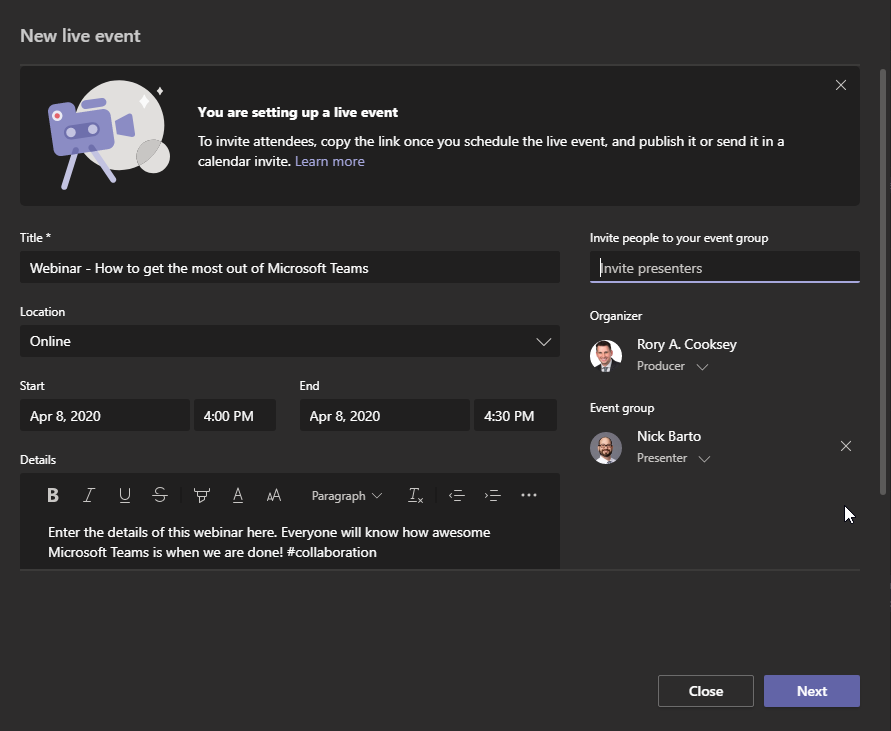
First, you will enter event information, including the title, date and time, and assign people to roles.
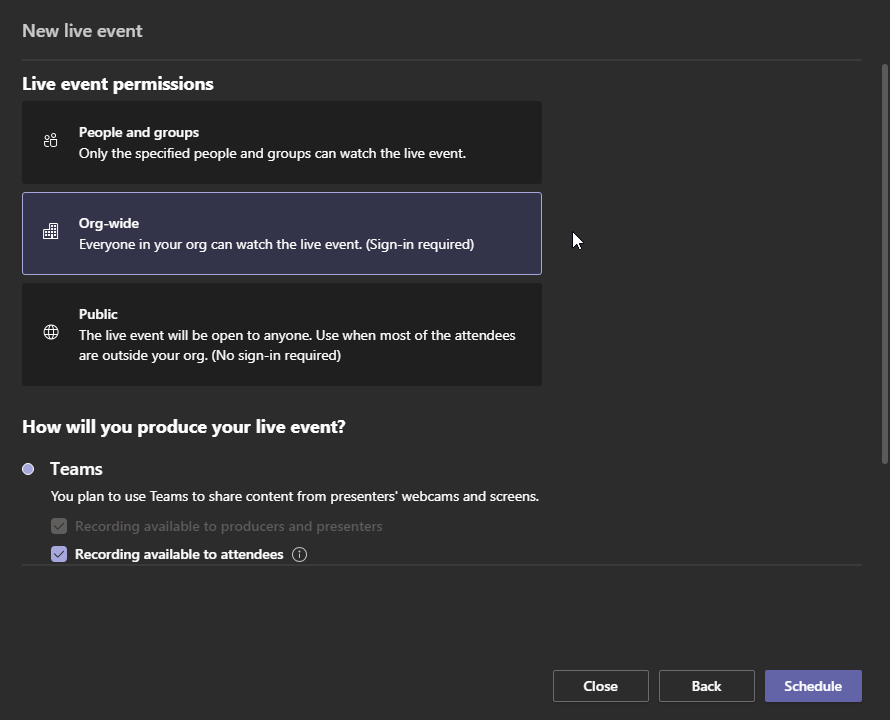
Depending on the audience for your event, you can create a Private or a Public event. Public events are a great option for things like public town halls or council meetings. If an event is public, anyone who has the link can attend without logging in.
If you want to create a public event but do not see the option, contact your IT administrator. The ability to create a public event is controlled centrally and, by default, users are not granted permission to create one. Your administrator can modify the policy for live events in the Teams Admin Center.
Invite Attendees to the Meeting
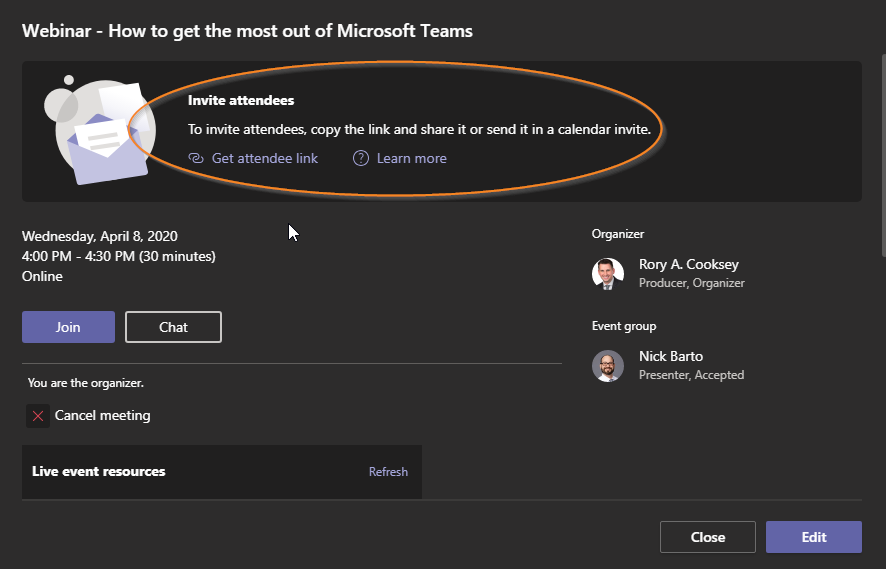
As a live event organizer, one of your responsibilities is to invite attendees. When you schedule a live event in Teams, it automatically sends the calendar invite to producers and presenters. From the calendar entry in Teams, you can get a link to the event and send it out to attendees.
Go Live
When you want to start the live event, select “Join” from the invite. You will enter the event in setup mode. In this mode, you can add the content and video you want to go live with. To get a quick overview of how to use setup mode and go live, click here to see a video.
Manage Recording and Reports
After the live event is over, you can choose to download the recording, as well as attendee and Q&A reports. Sharing the recording with attendees helps them review the event, and using searchable transcripts even enables them to jump directly to the parts of the event that matter most to them.
Take Your Events Further with WheelHouse IT
Live events are a great way to connect with your employees as well as your constituents. Whether it’s an employee town hall, a virtual council meeting, or a large-scale webinar, Teams makes it possible to deliver a polished, professional experience at scale — without needing a production crew.
As your organization’s needs grow, so do the capabilities of the platform. Microsoft continues to roll out new enhancements to Teams that improve the meeting and event experience for hosts and attendees alike.
Not a Teams user yet? Book a live demo with WheelHouse IT, a Gold Microsoft partner, and take it for a spin. Or visit our Managed IT Services page to learn how we help businesses across South Florida and New York get the most out of their technology investments.