Microsoft Teams is an incredibly powerful tool with a ton of features that we at WheelHouse IT love. We are taking a moment to highlight our favorite features for you. By leveraging the tips below you should be rockin’ and rollin’ with Microsoft Teams like a pro in no time!
Before We Kick This Off… What Is Microsoft Teams?
Microsoft Teams is a robust collaboration application that lives natively inside of the Microsoft 365/Office 365 ecosystem. You may know one of its competitors as Slack. Microsoft Teams comes included with Office 365 Business Essentials, Business Premium, or Enterprise licensing along with the entire Microsoft 365 license stack.
This simply means you probably already own it! #score
WheelHouse IT fully adopted Microsoft Teams about two years ago and it has certainly changed how we operate and communicate as a business, for the better.
Now Let’s Kick Off the Tips!
Add a Title to Your Chat
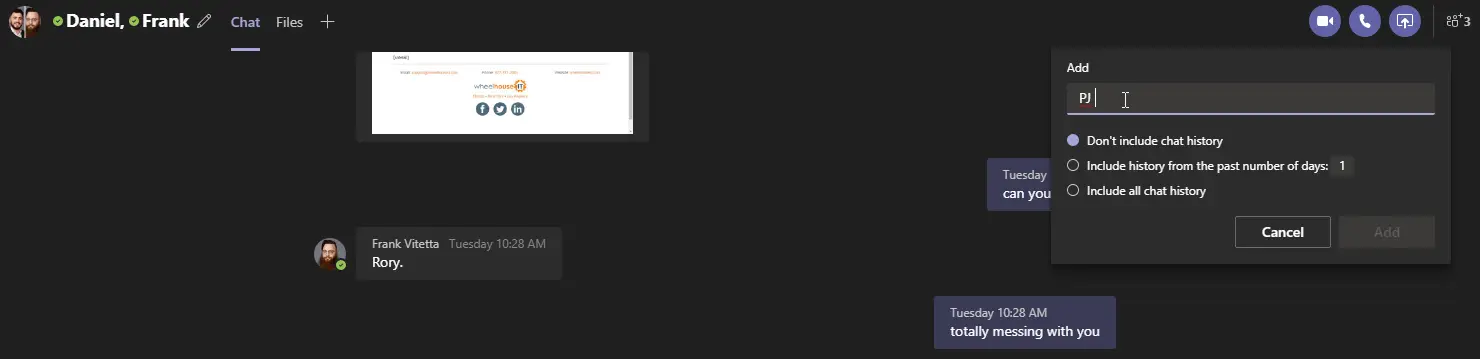
Channels typically contain numerous conversations. To help a particular chat stand out and make it more searchable, give it a title. For example, if you’re chatting with someone from Human Resources about a hiring, call the chat “LinkedIn Recruiter” and those keywords will pop up when you search later on. To name a chat, just click the pencil icon at the top next to the member names and type the title you want.
SharePoint in Teams Stores and Shares Files
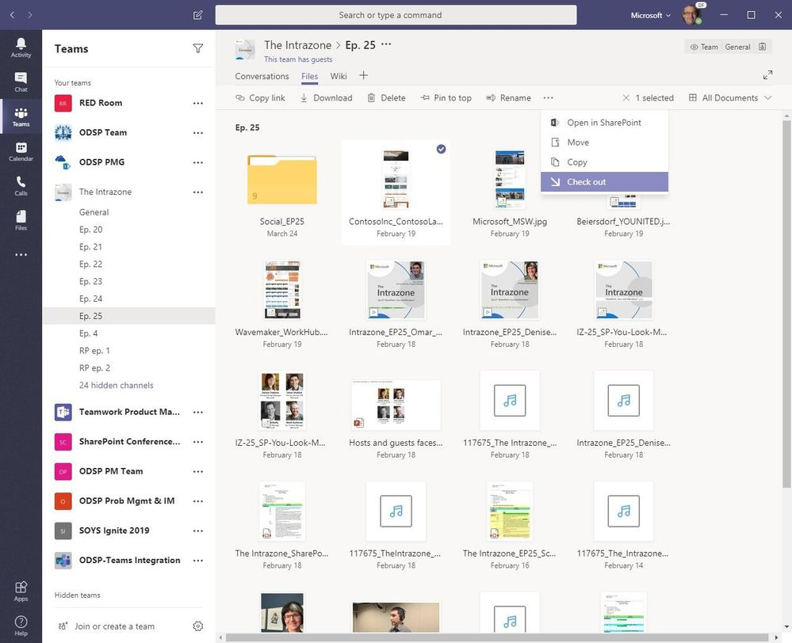
Many enterprises rely on SharePoint as a secure file storage and collaboration platform. The good news is SharePoint is the backbone of Teams. In every channel, you can click the Files tab to share files with team members via SharePoint or access SharePoint files already shared to the channel. Team members can collaborate on files using Office Online or an Office desktop app. This is a great way to ensure the appropriate team members always have access to the files they need.
You Can Forward Emails into a Channel
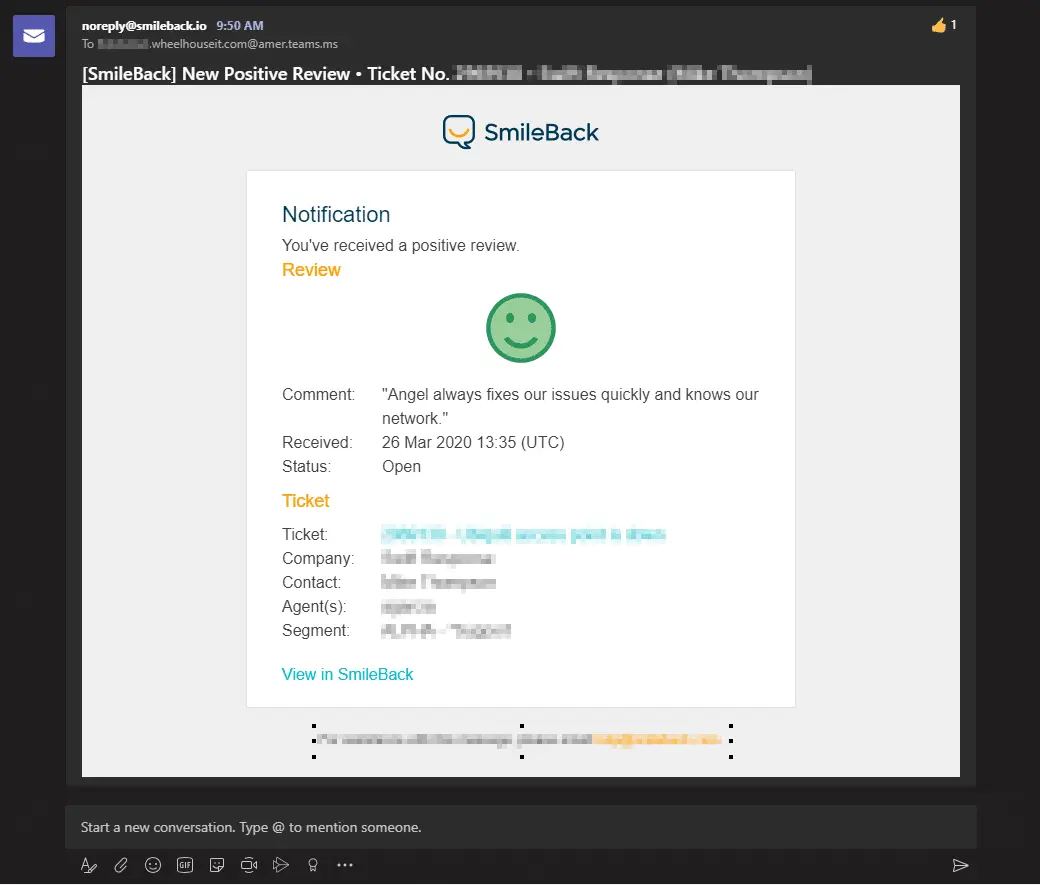
This is probably one of our favorite features. Microsoft understands how much corporate teams depend on email. You can forward any email message to a channel directly from Outlook, just click the ellipsis next to any channel name and select “Get email address.” That generates a unique email address for the channel. Copy it, and you can use that address to forward Word docs, messages, or just about anything you want to add to the channel. As an example, we use this to showcase positive reviews left by our clients when tickets are closed.
Stay Connected on the Go
There are mobile apps for Android, iOS, and Windows Mobile. The apps keep things simple, emphasizing team chats and channels without a lot of extra layers. Teams also runs as a web app or a desktop client for Windows or Mac, meaning you have a lot of options without having to do a ton of work to get going. For more on working effectively from anywhere, check out our tips for working from home with Microsoft Teams.
You Can Invite Others into the Conversation
Microsoft Teams is far-reaching right out of the box. You’re not limited to chatting with people on your own team, you can provide guest access to anyone at your company with an Outlook account so you can chat, share documents, and more. Try it: you can search on the name of anyone at your company to find them and start chatting.
Keyboard Shortcuts Are Your Friend
Did you know you can press the R key to reply to a thread in Teams? Or press Alt+A on Windows (Option+A on Mac) to quickly attach a file to a message? See all the keyboard shortcuts available in Teams by pressing Ctrl+E to go to the search field, typing /keys, and pressing Enter on Windows. On a Mac, press Command+E, type /keys, and press Return. For an even deeper dive, check out our full list of top keyboard shortcuts for Microsoft Teams.
GIFs Make Conversations Exciting
Who doesn’t like to spice up the day with a great GIF? Adding animated GIFs into your conversations can be motivational for your team, especially for younger workers. A well-timed GIF is a great way to celebrate awesome work and say thanks, you can say a lot with a little. You can pick from the animated GIFs included with Teams or use the Giphy app to find the perfect one, which adds an extra layer of personalization to the team chat. Note that although Giphy is built into Teams, the Teams administrator needs to activate it.
New Microsoft Teams Features
New Teams & Outlook Integrated Experience
Teams is the hub for getting work done with your team, but we know that’s not the only way people communicate. Microsoft built a new integration between Outlook and Teams to make it easy to collaborate no matter where the conversation is taking place. Users can now move a Teams conversation from Teams to Outlook by clicking the more options (“…”) icon in a conversation. Users can also move an email conversation from Outlook, including attachments, into a Teams chat or channel by clicking “Share to Teams” in Outlook. Learn more here.
Chat & Collaboration
Get in Touch with the Right People with Targeted Communication
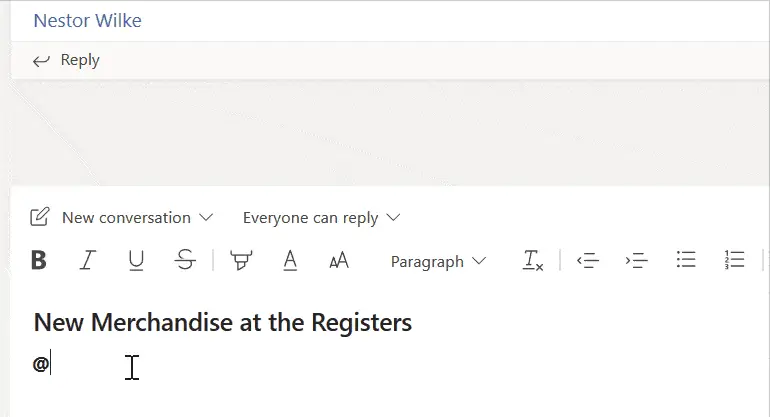
What do you do when you need to get an important message to all cashiers in a store, or all managers in a warehouse? Targeted communication allows team members to message everyone assigned to a specific tag at the same time, simply @mention the tag name in a post. Using tags, team owners can organize users based on a common attribute like a role, project, or location. Admins can control who can add tags and how tags are used across your organization in the Microsoft Teams admin center. Learn more here.
New Files Experience in Teams Powered by SharePoint
The Teams file experience is powered by SharePoint, and the new file experience has rolled out to 100% of worldwide tenants. This new experience in the Files tab of a channel includes the ability to sync files to your computer (PC or Mac), see rich previews across 320+ file types, create views and work with metadata, see document lifecycle signals, review on-hover file cards, pin files to the top, check in and check out, and much more. See more of the experience here.
Calling & Meetings
In-Region Storage for Meeting Recordings
Teams meeting recordings are stored in Microsoft Stream cloud storage. Tenant administrators can go to the admin center to toggle “Allow cloud recording” on or off for Teams meetings. For customers where Stream is not available in their corresponding Go Local region, Microsoft has updated the default behavior to store recordings in the respective in-region data center instead. Learn more here.
IT Admins
Manage Your App Catalog in the Teams Admin Center
Admins can confidently manage apps from the Microsoft Teams admin center. The Manage Apps page provides a view into all available apps in the tenant, with information to help decide which apps to enable for your organization. The app catalog also streamlines the process of testing and distributing line-of-business applications. For more on leveraging apps inside Teams, check out our post on using applications inside Microsoft Teams. Learn more about the Admin Center here.
Security & Compliance
Legal Hold for Teams Private Channel Messages
Meet legal requirements by preserving information in Teams. Legal hold now supports the preservation of private channel messages. Learn more here.
Communication Compliance
Minimize communication risks in your organization. Communication Compliance helps administrators detect, capture, and take remediation actions for inappropriate messages. Learn more here.
Apps & Workflows
Enhanced Power BI Tab for Teams
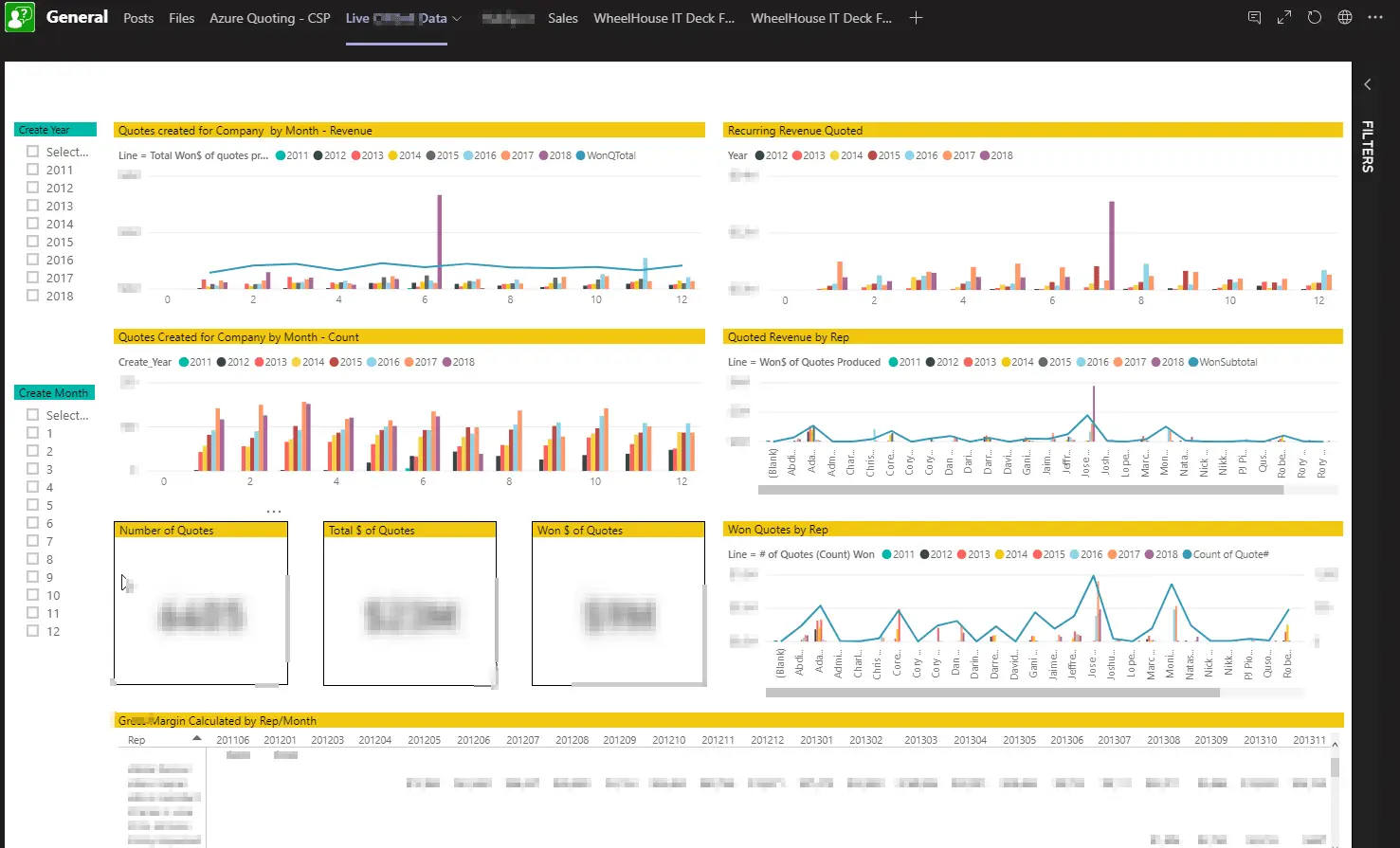
The new Power BI tab for Microsoft Teams adds support for reports in the new workspace experiences, reports in Power BI apps, and paginated reports. When the tab is added to your channels and chats, it’s easier for everyone to find and track the data they need. It’s also a great way to manage change in your organization, as new people join a team, the data they need is right there and ready to go.
Pin Your Apps to the Left-Hand Rail for Easy Access
Access to your favorite apps just got easier. You can now pin personal apps to the left-hand rail (also known as the Teams app bar). Simply find the app, right-click the app icon, and select “Pin.” Even after you navigate away, the app icon will remain so you can easily return to it. You can also pin apps to relevant channels or chats for quick access. Teams Admins can create group policies so certain apps appear on everyone’s Teams app bar. Learn more about admin app pinning here.
Key Takeaways: Evaluating Clinical Disaster Recovery Services Recovery Time Objective (RTO) and Recovery Point Objective (RPO) must align with clinical