

Microsoft has officially said goodbye to OneNote 2016. As of October 14, 2025, OneNote 2016 reached its full end of support alongside the rest of the Office 2016 and Office 2019 suite, meaning Microsoft no longer provides security updates, bug fixes, or technical support for it. Instead, Microsoft has consolidated its note-taking strategy around the modern OneNote on Windows app, available through Microsoft 365 and the Microsoft Store.
If you are still running OneNote 2016, now is the time to make the move. This guide walks you through exactly how to do it. (If you missed Part I of this series, check it out here for background on why Microsoft is making this change.)
Check To Make Sure You Have OneNote Installed
If you are a frequent user of Microsoft OneNote, you will want to know what version you are actually using. When you have Office 2016 or Microsoft 365, chances are you are using OneNote 2016.
If you are pretty new to OneNote, you might have the newer version already on your machine. When that is the case, you do not have anything more to do!
If you are not sure, there are a few ways to check.
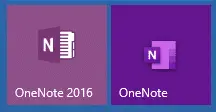
The older version of OneNote is typically labeled as OneNote 2016 while the new version is just called OneNote. You will also notice a difference between the icons, as shown above. Microsoft’s own support page on the differences between OneNote versions is a helpful reference if you are still unsure which you have.
To check whether you have the new OneNote installed, click on the Start Menu and type ‘OneNote’. You should see the app just labeled as ‘OneNote.‘ If you have 2016, that should show up there too.
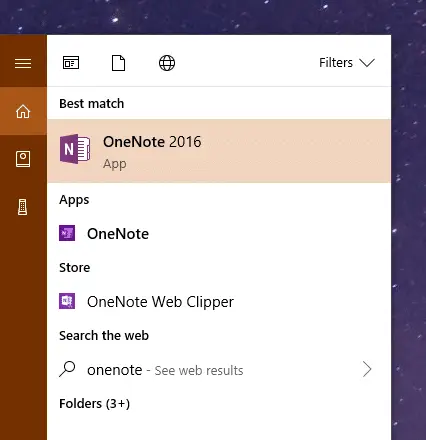
If you do not see the new version of OneNote, you are either behind on your updates or it was not deployed to your workstation. Either way, it is best to check with IT if that is the case, or give WheelHouse IT a call at (877) 771-2384.
You can open and use the new OneNote app at any time, but your notes from OneNote 2016 might not appear automatically. Keep in mind you will also need to sign into the new OneNote for the first time with your Microsoft 365 account, which might require your IT admin.
Migrating Notes from OneNote 2016 to OneNote
OneNote 2016 has a couple of different ways it can store a notebook. Chances are even if you use OneNote a lot, you probably do not realize how it is working behind the scenes, because it rarely asks you if and where you want to save something. That is part of the beauty of every version of OneNote: once it is set up, it just saves everything you do on the fly.
First, Let’s Back Up Your OneNote 2016 Notebooks
Before you do anything else, back up your OneNote 2016 notebooks. This is especially important since OneNote 2016 has now reached end of support and will no longer receive security patches. Open OneNote 2016 and follow these steps:
- Click File > Options.
- In the OneNote Options dialog box, choose Save & Backup.
- On the right, you will see a section called Save. Select Backup Folder.
- Click the Modify… button.
- Choose a destination to store your backup. A good spot would be a folder called OneNote 2016 Backup in your Documents folder or on your desktop. Once you have found a place to put your backup, click Select.
- Then click Ok on the OneNote Options dialog.
- Go back to File > Options > Save & Backup.
- On the right, in the section labeled Backup, click Back Up All Notebooks Now.
- Wait for OneNote to finish backing up your notebooks.
Try Simply Opening Your Notebooks in OneNote
OneNote 2016 stores all of your notes in notebooks. These notebooks, by default, are either stored in your Documents folder in their own folder, or on Microsoft OneDrive. You can also store notebooks in a shared location on your network or essentially anywhere else.
If you are using one of the default options, the new version of OneNote will likely have no problem pulling up your old notebooks.
Open OneNote (the New Version) and Try Opening Your Notebooks
- Simply type ‘OneNote‘ into your Start Menu and open the new OneNote app.
- Click Notebooks to see a list of your notebooks.
- Click More Notebooks… and see if you can see your previous notebooks appear in the list. Keep in mind you will need to be signed in, especially if your previous notebooks were stored in OneDrive.
- Simply check the boxes next to each notebook you want to add to the new version of OneNote and click Open. That is it!
If your notebooks are not being found, it is likely that they are not stored in a folder that the new OneNote recognizes. For example, if you have stored a notebook on your network instead of in the Documents folder that OneNote expects, the new OneNote will not find it.
If that is the case, you will need to find where you are storing your OneNote notebooks. Then, drag them into your Documents folder.
WARNING: Before you do this, consult with IT. There may be a reason your notebook is stored centrally on the network instead of on your workstation. If that is the case, a technician will want to export your OneNote notebooks and deploy them in the proper location, or help push them to the cloud so they can continue to be accessed without needing to be stored directly on your workstation.
Microsoft also offers an official step-by-step resource for this transition. Their Moving to OneNote on Windows guide covers common sync issues, how to handle unsynced content, and what to do if notebooks appear missing after the switch.
Ready to Make the Switch? WheelHouse IT Can Help
OneNote 2016 hitting end of support is not just a productivity inconvenience: running unsupported software means your organization is no longer receiving security patches, which creates real exposure. If you are managing a team and need help rolling out the new OneNote across your environment, or if the migration steps above feel like more than you want to tackle on your own, that is exactly what managed IT support is for.
WheelHouse IT helps businesses across South Florida, New York, and Los Angeles navigate Microsoft transitions like this one every day. Whether it is a single-user migration or a company-wide rollout tied to a broader move to Microsoft 365, our team handles the details so you do not have to.
If you have any trouble moving your notes over to the new OneNote, do not hesitate to reach out to our team or give us a call at (954) 474-2204