OneDrive ensures data security and reliable collaboration both inside and outside your organization, with an intuitive sharing experience that extends across Microsoft 365. Safely sharing and accessing content is becoming increasingly important as the business world shifts to remote work.
Users need to get to their files and folders from any number of places and devices, while admins need continued control over how that content is disseminated. OneDrive has the security and monitoring features required by both groups.
Read on to learn how OneDrive helps users stay productive, gives admins the tools to manage and monitor content wherever it’s used, and ultimately protects confidential company information.
Safe User Productivity
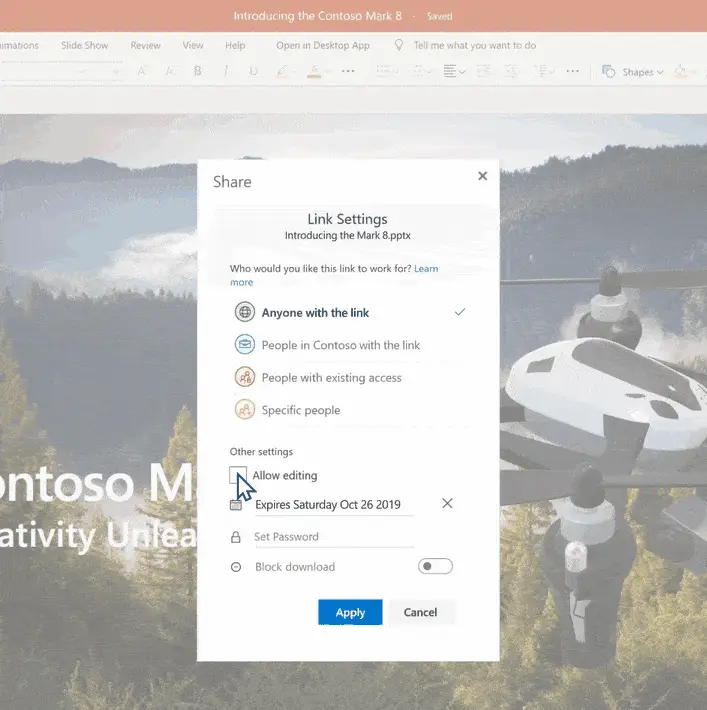
Sending a file as an email attachment has long been the go-to method for sharing content — but it’s also the most difficult to monitor and can lead to data leakage and version control issues. OneDrive offers a variety of ways to safely and efficiently share content as a link instead, both with colleagues and external clients. With this method, users can define who gets access with four sharing options: Anyone with the link, People in your organization, People with existing access, or Specific people. Extra granular controls including expiration dates and passwords on “Anyone with the link” further safeguard shared content. Expiration dates limit access after the intended period, while passwords require anyone accessing the link to enter it first. Blocking downloads, which prevents recipients from saving Office files to their own computers, is another effective method for protecting shared data.
By choosing the Specific people option, users can limit access to certain colleagues or external guests by entering each recipient’s email address. Extra OneDrive precautions are taken when users share content with people outside the organization. While external stakeholders are not required to have a Microsoft account, they will need to enter a single-use, time-limited verification code emailed from OneDrive to access the shared content — verifying their identity and ownership of the email account.
At all times, users have control over who can access their OneDrive content. They can easily manage access, add and remove individual users on shared links, or stop sharing content entirely. If they are concerned a link has been shared with too many people, they can revoke that link to protect content while ensuring others can continue to collaborate effectively.
These secure sharing options are especially important as people transition to working outside the office, giving remote workers the ability to share content on their terms and from their preferred devices.
Easy Management of External Sharing
OneDrive gives admins the visibility and control they need to help prevent accidental data leaks without preventing their users from sharing necessary content. Built-in management tools allow workers to safely coordinate with anyone, including external guests, no matter where they’re working.
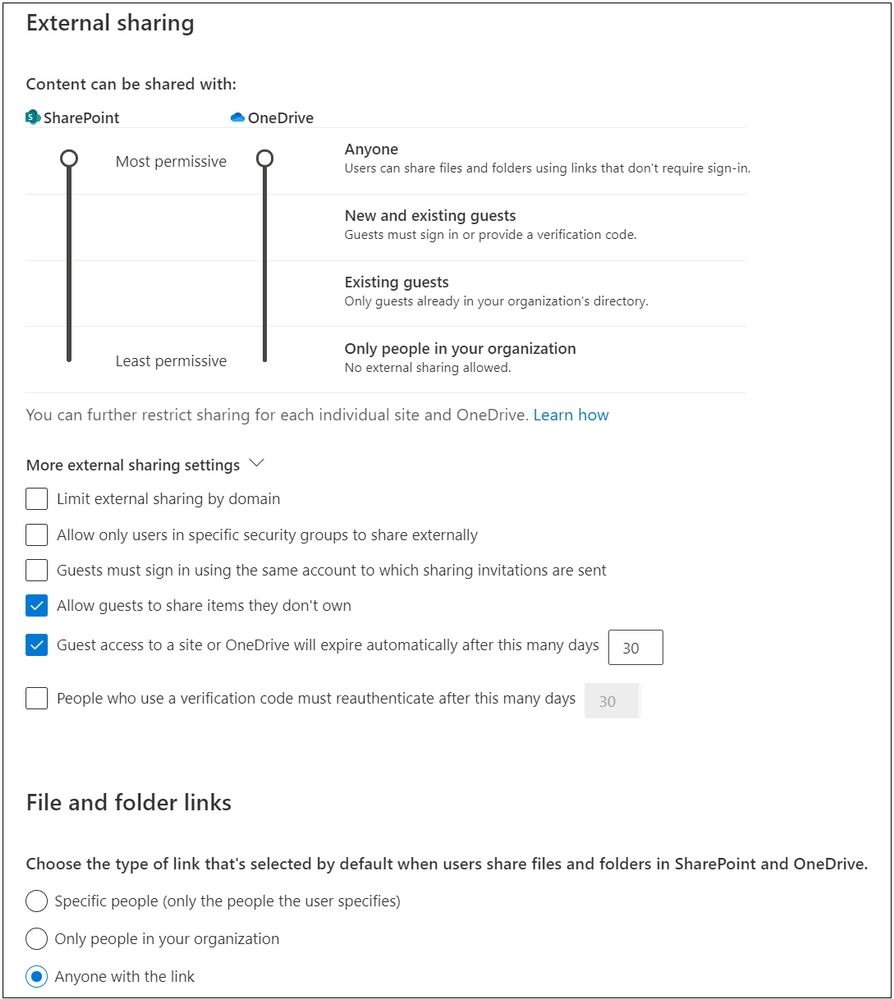
One of these admin controls is to set the default link option that appears when users share content through OneDrive. For example, admins might select a more restrictive default option such as “People in your organization,” while still allowing users to select “Anyone with the link” if greater flexibility is needed. To ensure company data is not accessible broadly by accident, admins can also set a mandatory expiration date for “anyone links.”
By using domain filtering or blocking guests from resharing content they don’t own, admins can limit unnecessary exposure when users share content outside the organization. Admins can also limit external sharing to specific security groups they deem necessary.
If users need to collaborate routinely with vendors and partners from another organization, admins might consider the OneDrive integration with Azure B2B, which provides authentication and management of guest users. Admins can also learn about best practices for creating a secure guest sharing environment.
Sensitive Data Protection
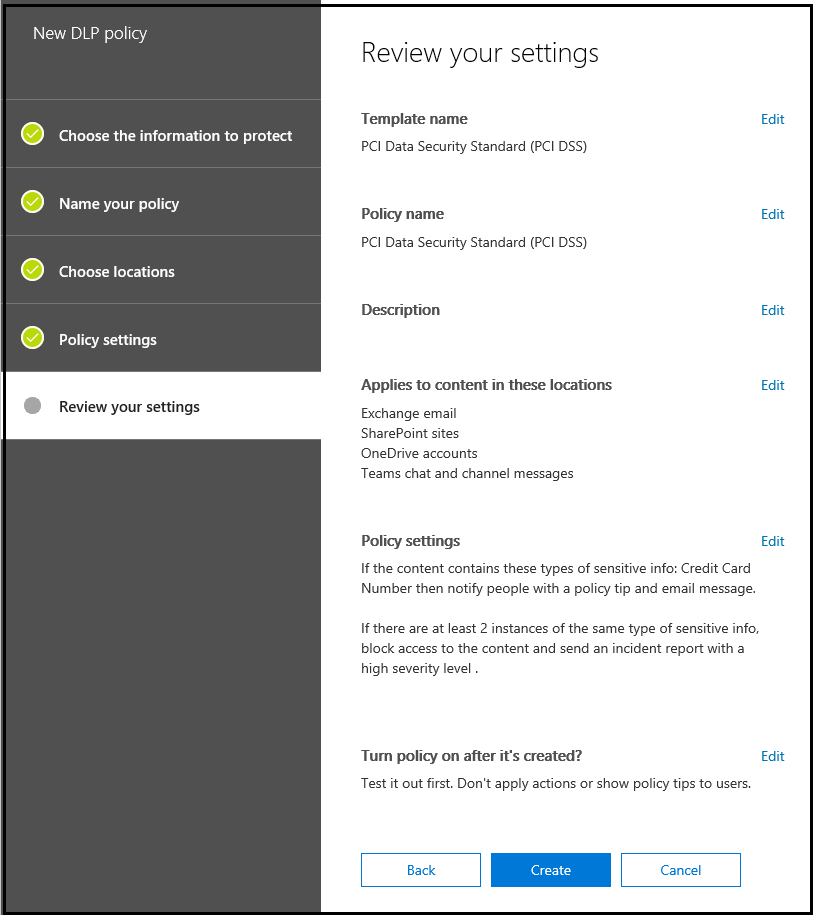
To comply with business standards and industry regulations, organizations must protect sensitive information and prevent its inadvertent disclosure. Sensitive information can include financial data or personally identifiable information, such as credit card numbers, Social Security numbers, or health records. With data loss prevention (DLP) policies, admins can identify, monitor, and automatically protect sensitive information in OneDrive. For example, admins can prevent the sales team from accidentally sharing sensitive client data externally.
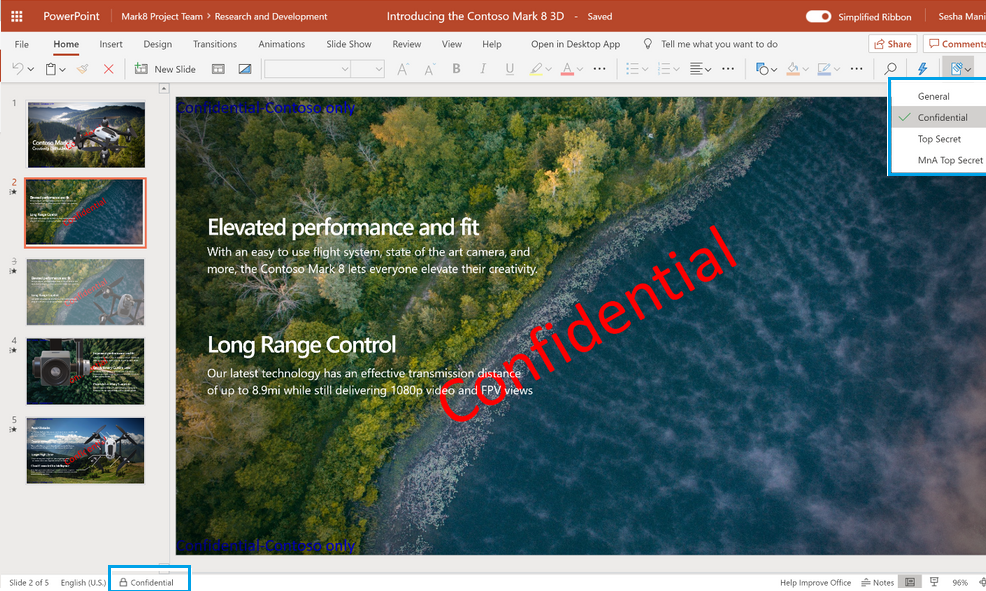
Sensitivity labels are another way to proactively protect company data. They are like stamps on documents stored in OneDrive — appearing as content markers, either as a watermark or as labels in the header or footer — and can be customized for different levels of classification, such as Personal, Public, General, Confidential, or Highly Confidential. Labels also exist in the document’s metadata and can include encryption settings.
Secure Access to Company Data
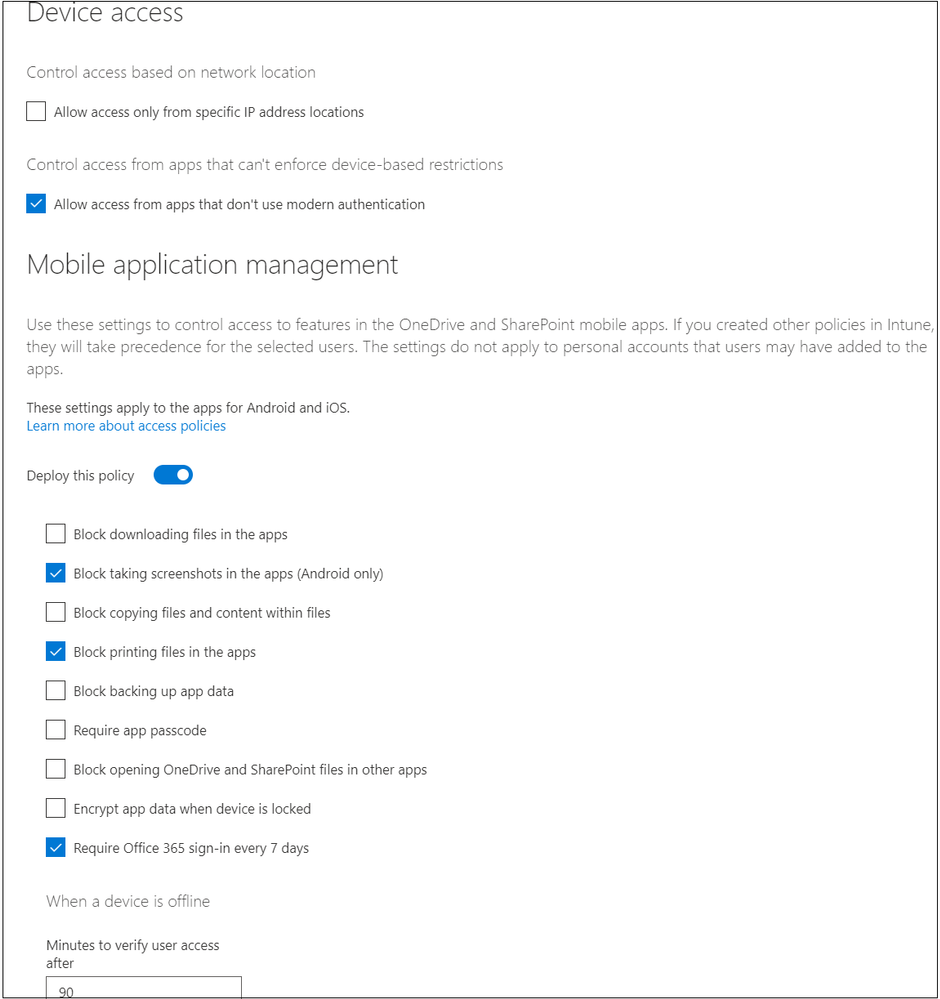
Organizations are always concerned about unauthorized access to data or content being downloaded to untrusted devices — especially in today’s remote-work environment. To ensure secure access, admins can set multi-factor authentication for their workers as well as guests. Additionally, Microsoft Endpoint Manager — which combines Microsoft Intune and Configuration Manager into a single console — allows admins to take stock of all their endpoints and apps, including bring-your-own-device scenarios, and take appropriate action to ensure they are secure for remote workers. App protection policies in Intune help admins manage OneDrive data on employee-owned mobile devices.
With sensitivity labels, admins can also restrict access by enforcing encryption — for example, so that only users in the HR team can edit a confidential document, even if it ends up in the wrong hands.
Conditional Access policies in OneDrive enable admins to control data access on unmanaged devices and help prevent accidental data leaks without hindering productivity. Admins can allow users and guests on unmanaged devices to have browser-only access with no ability to download, print, or sync files. They can also enable idle session sign-out policies to automatically sign out users on unmanaged devices after a period of inactivity.
Location-based policies are another option for admins to restrict data access from undefined network locations.
In remote working scenarios, OneDrive makes collaboration easy by allowing users to request files from remote colleagues, vendors, and partners by sending an upload-only link. Admins can also implement the Safe Attachments feature in Microsoft Defender for Office 365 to automatically scan uploaded files and quarantine those that are found to be unsafe.
Finally, organizations that put their data in OneDrive can rest easy knowing it is protected using best-in-class encryption both at rest and in transit.
Comprehensive Monitoring
Users sharing content in OneDrive can access reports on shared files and folders to review what has been shared externally.
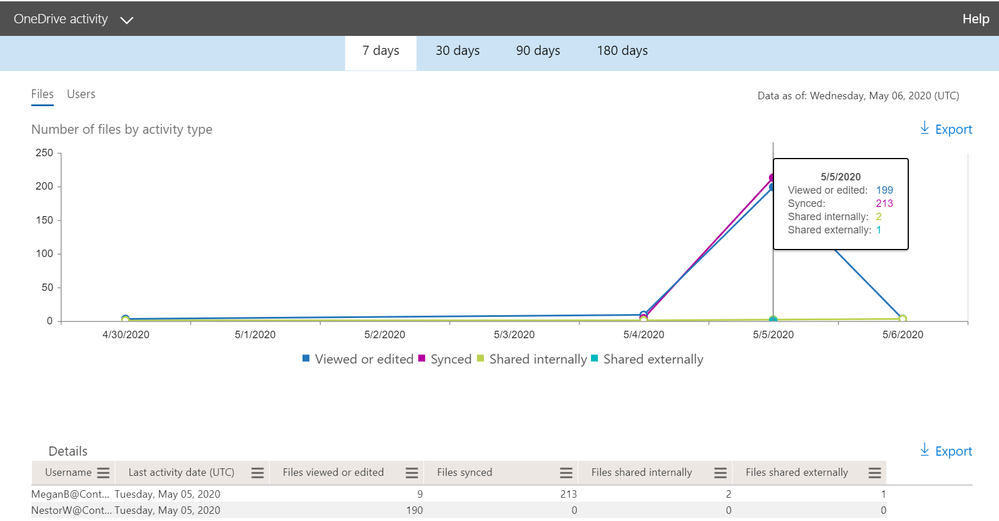
Likewise, admins can access extensive Microsoft 365 reporting that includes OneDrive usage reports describing trends on files, user accounts, and storage over a selected period of time. They can also drill down on data for each user’s OneDrive using activity reports, which include information about file modifications, uploads, downloads, and shared or synced files.
If admins implement DLP policies, they can also generate DLP reports to discover business insights and trends and focus on business processes that may violate the organization’s compliance policies. By monitoring content activity in OneDrive, admins can quickly identify unusual activity among remote worker accounts, which are being accessed from a variety of places and devices.
Want help implementing OneDrive security and compliance features for your team? Contact WheelHouse IT today — we help businesses get the most out of their Microsoft 365 environment, including OneDrive setup, data protection, and admin policy configuration.