

The term “Johnny-on-the-spot” is one that most people are familiar with. It means when a person is ready to impulsively act on the opportunities presented for them.
Sometimes in business, things tend to move too fast for even the most experienced and thoughtful managers to be out in front of. One situation that is routinely experienced by organizations is that their content and deliverables need to be updated frequently to properly represent the products or service delivery the company offers.
Microsoft Word, the predominant word processing application, is one of the most utilized software titles in the world — and there are constantly opportunities for people to show off their mastery of it. These tips may not actually save your job (if your job is even on the line), but if there was a situation where there was a choice to be made whether to retain someone who isn’t proficient with productivity software and you, it would be more difficult for the person in charge of that personnel decision to remove you from the equation.
Recovery of Lost Word Files
Here’s the scenario: someone is working on an important document when his/her computer crashes before he/she had time to save it. Luckily you’re there. While they are in a panic, all you have to do is open Word and navigate to the File menu, then click Info. Under Manage Document, select Recover Unsaved Documents. He/she will get their files back, and you’ll be a hero.
Microsoft maintains a full guide on recovering lost or unsaved Word documents, including AutoRecover file locations and backup copy options — worth bookmarking before disaster strikes.

Compare Two Documents Side-by-Side
Collaboration is more important today than it has ever been in business. Today, you are beginning to see the workforce more dispersed than ever, so it becomes important for the productivity software organizations deploy to have integrated collaborative options. If you are working on a document with another person, you can compare two versions of it or merge changes made by multiple authors by navigating to the Review tab at the top of the document screen. This will give you and your team options to collaborate more effectively.
If your team is already on Microsoft 365, real-time co-authoring in Word takes this a step further — multiple people can work in the same document simultaneously without ever needing to compare versions after the fact.

Add a Functional Table of Contents
Occasionally, you’ll be tasked with building a report for someone that would be hard to follow without a table of contents. With your Word expertise, you can build a functional and easy-to-use table of contents on any paper or report.
When you are writing your paper, the headings and subheadings will become line items in your table of contents, so it is important to lay the paper out in the way you intend for it to be read. Look for the References tab and click on Table of Contents. You will be given quite a few options. Just select the style you like best, click it, and Word will create the table of contents automatically. You then just have to edit to your specifications and you’ll have a way to easily navigate around lengthy documents.

Add Custom Words to the Spell Check Dictionary
It may seem pretty unreasonable when you type a word (or phrase) into Word that you write often and know how to spell — such as business names and other unique terms — yet it continually marks it as wrong. One way to mitigate this distraction is to add custom words into Word’s spell check dictionary.
To do this, navigate to the File menu and then click on Options. When the Options window opens, click on Proofing.
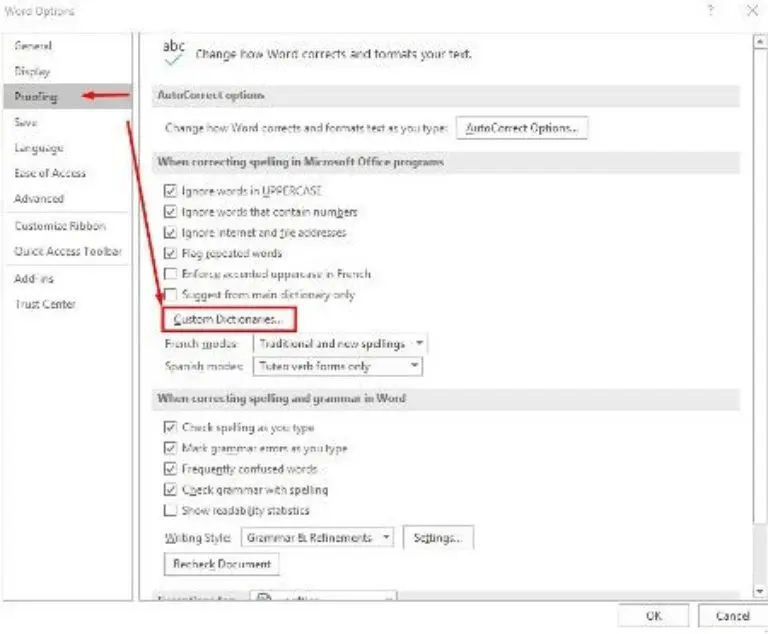
Once the dictionary list pops up, select CUSTOM.DIC and click on Edit Word List. This will allow you to make changes to your custom dictionary.

Take Your Microsoft Skills Even Further
In any office, the more helpful and versatile you can be, the more valuable you are. And these Word tips are just the beginning. If you want to go deeper, Microsoft Copilot in Word now brings AI-powered writing assistance directly into your documents — from drafting and summarizing to rewriting content on the fly. It’s a significant productivity upgrade for anyone already working in Microsoft 365.
If you’d like to see more tips like these, consider subscribing to our blog. We write about productivity, collaboration, and the technology it takes for businesses to get things done. Do you know any Word tips that save people time? Feel free to leave them in the comments.
And if your business could use a technology partner that keeps your entire team running smoothly — not just your Word skills — contact WheelHouse IT or visit our Managed IT Services page to learn how we support businesses across South Florida, New York, and beyond. Call us today at (954) 474-2204