

Microsoft knows that it can often be frustrating trying to organize your company by role, skill-set, and more. This is why they embedded Tags into Microsoft Teams. Tags help you know if you are talking to the right person or group of people.
With targeted communication using tags in Microsoft Teams, you can organize users within your Team based on attributes such as role, skill, or expertise. Once tags are applied, you can quickly and easily reach the right people. Below we look at how to use tags.
Create and use tags in Teams
To get started with tags, find a Team on the left-hand side of the screen, select More options …, and choose Manage Tags. Here you can create tags:
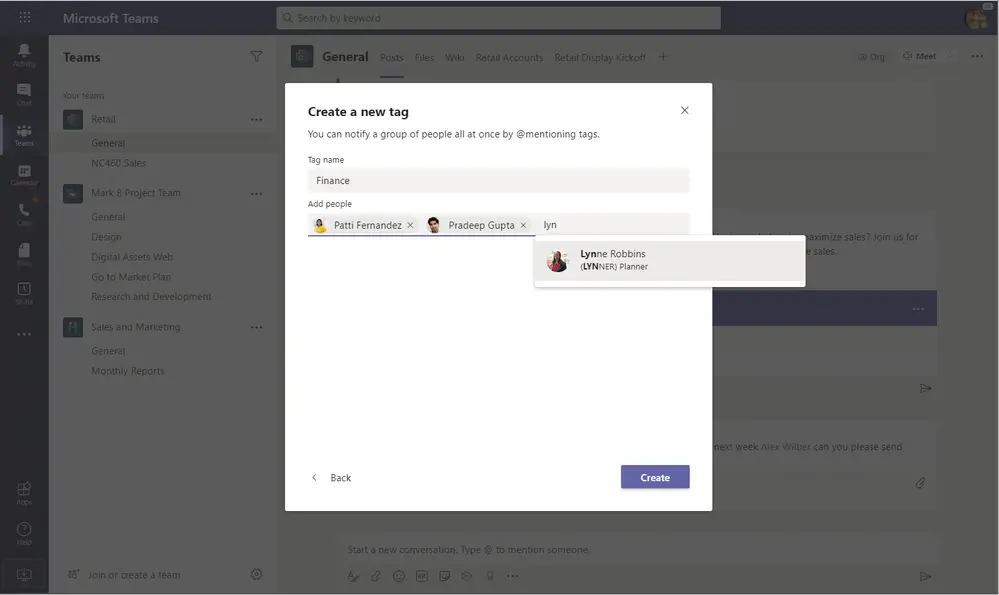

Here are some situations where tags might be able to help your group communicate and collaborate more efficiently.
Role-based work
In organizations where people often know the role of the person they need to reach, but not their name, tags can provide the right context to find them. For example, if I work in a role where I pass specific types of issues to a support team, I could create a CustomerSupport tag. Then, I could post a customer issue to a Channel and include @CustomerSupport so that the right people get notified.
Large Teams
Within large Teams, tags are a middle ground between @mentioning an individual and @mentioning an entire Channel. For example, if I work in a retail store with multiple departments, I could create a Footwear tag for employees assigned to that department. Then, when I create a channel post to let the whole store know that two displays are being reorganized, I can include @Footwear to make sure only the relevant employees get the message.
Cross-functional project teams
For special projects where members may not frequently work together, tags can serve as a lightweight way to create a project group. This is especially useful for short-term projects. For example, if I’m working on a new product design concept with people from Marketing, Merchandising, and Branding, I could create a ProductAlpha tag for our group.
Identifying an expert or owner
Tags can also be helpful to identify an expert or a single point of contact. For example, if I work in a manufacturing plant, I might want to tag people with a specific safety certification.
Learn more and upcoming tagging capabilities
When using tags, here are some other things to keep in mind:
- Pick a name that all members of the Team can easily understand.
- Tags are only accessible to people who are members of the Team where the tag was created.
- A team can have up to 200 tags, with up to 200 members assigned to each tag. Each user can be assigned a maximum of 25 tags within the same team.
- Tags can be disabled by your IT Admin, or changes to tags can be restricted to Team Owners only. If you don’t see tags, they may have been disabled in your environment. For more information, see the Manage Tags in Microsoft Teams article.
To learn more about tags in Teams, check out the links below.
Tags in Teams continue to evolve. In addition to manually created custom tags, Microsoft now supports tagging by shift, which automatically assigns tags to users based on their active shift in the Shifts app in Teams. This means notifications only reach the people who are actually on-shift at the time, taking the guesswork out of knowing who to contact.
Looking to get more out of your Microsoft 365 environment? WheelHouse IT helps businesses across South Florida, New York, and Los Angeles configure and manage their Microsoft solutions so teams can work smarter, not harder.
Ready to Streamline Team Communication?
Our team can help you get the most out of Microsoft Teams, from tags to tenant-wide configuration. Visit wheelhouseit.com to connect with a WheelHouse IT specialist today.