

Microsoft Teams Rooms natively supports the web version of Microsoft Whiteboard, allowing you to interact with remote attendees in real time during Teams meetings. At WheelHouse IT we love whiteboards. Every office has them painted on the walls! But when we can’t be in the office, Microsoft Teams fills our void.
When Microsoft Teams Rooms is part of a meeting, it can display the Microsoft Whiteboard for all attendees in the meeting room to see. But did you know the attendees can walk up to the screen and draw right on it? All you need is a touch-enabled display device.

To enable the interactive Whiteboard on a Microsoft Teams Rooms device, you need to meet the following requirements:
A touch-enabled display device. Microsoft does not certify touch-enabled monitors or TVs for Microsoft Teams Rooms. However, any touch-enabled display device that is certified for Microsoft Windows will work with Microsoft Teams Rooms. The USB cable out of the monitor or TV connects to the compute unit of Microsoft Teams Rooms.
Make sure that Windows recognizes that the display device is touch enabled. On Microsoft Teams Rooms, this will require signing in to the device as a local administrator. Once signed in as a local administrator, search for “Calibrate the screen for pen or touch input.” This will bring up the Tablet PC settings screen. If everything is set up correctly, you will see that your display device is properly recognized as a touch display. In the image below, the selected display has “Full Windows Touch Support.”
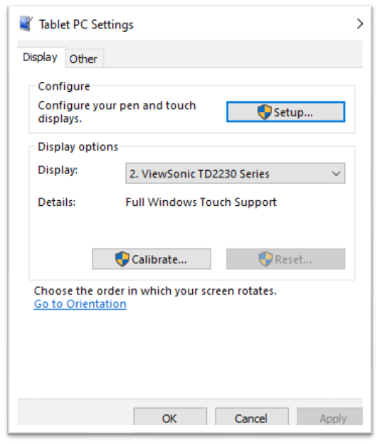
Touch-enabled display devices will still work even if they have limited or single touch support. You can read more about the difference here.
If your display does not show up as touch-enabled, you may need to install display drivers from the monitor or TV manufacturer. You also may need to configure the device first for pen and touch support by clicking on the Setup… button on the Tablet PC Settings screen. Also, verify that the USB cable from the display device is properly connected to Microsoft Teams Rooms.
Make sure your Microsoft 365 tenant has Whiteboard enabled. To check this, sign in to the Microsoft 365 Admin Center. Within the admin center, use the search box in the top right and type Whiteboard. Select Whiteboard settings from the results and verify that Turn Whiteboard on or off for your entire organization is toggled On.
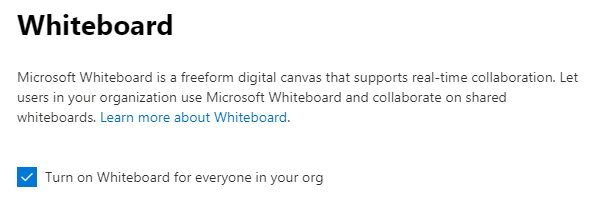
See Microsoft’s documentation on managing Whiteboard access for your organization for more information on enabling Whiteboard, including the required SharePoint Online PowerShell configuration.
Your Microsoft Teams Rooms device needs to be on a supported, current version of the Teams Rooms app. If you are following best practices by allowing your Microsoft Teams Rooms devices to update automatically, you will be on a recent version. For a full list of current releases and features, see the Microsoft Teams Rooms release notes.
Finally, this feature is only available when joining a Microsoft Teams meeting. There is no support for touch-enabling the Whiteboard when the Microsoft Teams Rooms device is in a Skype for Business or Skype for Business Online meeting.
By adding a touch screen to Microsoft Teams Rooms, you can easily unlock creativity and collaboration throughout your organization. Looking to get more out of your Microsoft 365 environment? WheelHouse IT helps businesses across South Florida, New York, and Los Angeles configure, manage, and maximize their Microsoft solutions so your team can collaborate from anywhere.
Ready to Upgrade Your Meeting Rooms?
Whether you’re setting up Microsoft Teams Rooms for the first time or optimizing your existing setup, our team is here to help. Visit wheelhouseit.com to connect with a WheelHouse IT specialist today.
By: Michael Tressler, Microsoft