With the response to COVID-19, Microsoft received overwhelming demand for early access to the Teams Bookings app for telemedicine visits, as mentioned in this recent announcement around new capabilities in M365 to empower healthcare professionals.
With that high demand, Microsoft’s product and engineering teams became so busy fulfilling exceptions that it put the product’s general availability release schedule in extreme jeopardy. Therefore, the Microsoft team made the difficult decision to deny all outstanding exceptions for early access to Bookings in Teams and re-commit to completing the GA release so that all customers in need can benefit as quickly as possible.
Microsoft understands that many healthcare practices need a telehealth or virtual visit solution immediately, and they have a temporary solution. This post covers how to use the out-of-the-box features in Bookings to enable your healthcare practice to schedule and complete virtual visits. This solution still uses Microsoft Teams meetings for the audio and video components of the virtual visit.
For a quick overview of how Bookings works for virtual visits or telehealth, check out this quick video overview of the solution.
How to Use Microsoft Teams Meetings for Business to Business (B2B) Consults
The Meetings function in Microsoft Teams is a great tool if you want to have virtual consults from:
Inside your organization (e.g., Doctor to Doctor or Nurse to Doctor)
Outside your organization (e.g., a consulting doctor from another organization)
However, as soon as you want to include a consumer, Microsoft Teams meetings are significantly enhanced by Bookings.
Why Bookings with Microsoft Teams Is a Better Fit for Business to Consumer (B2C) Virtual Visits
Bookings enhances Microsoft Teams meetings in several important ways:
Bookings sends the invite from a “business or organization”, not from a user’s email. Microsoft understands that doctors and/or schedulers do not want their personal emails sent out to the public. This protects their privacy and ensures patients are not reaching out to them directly without their consent. If a doctor feels compelled to share their contact information, that is their choice — but Microsoft wants it to be at their discretion.
Bookings creates a custom meeting join link for guests. This ensures the patient has the best possible experience when joining a virtual visit. When they click “Join” on a desktop or mobile device, Microsoft Teams will auto-launch in the web browser — no credentials required.
Bookings allows an organization to create custom invite templates for all appointment types. This reduces the time and effort for schedulers, so they can focus on what matters most: taking care of the patient.
Bookings allows schedulers to view multiple doctors’ availability in one place. This improves efficiency so schedulers can book appointments quickly and move on to the next patient in the queue.
Bookings takes advantage of Microsoft Teams meetings infrastructure in the background. This enhances the scheduling, invitation, and join experience for the patient, making for a better overall Business to Consumer virtual meeting.
Pre-Requisites and Setup Instructions for Bookings
All users who need to access Bookings, and all doctors who need to be scheduled via Bookings, must have their mailboxes online.
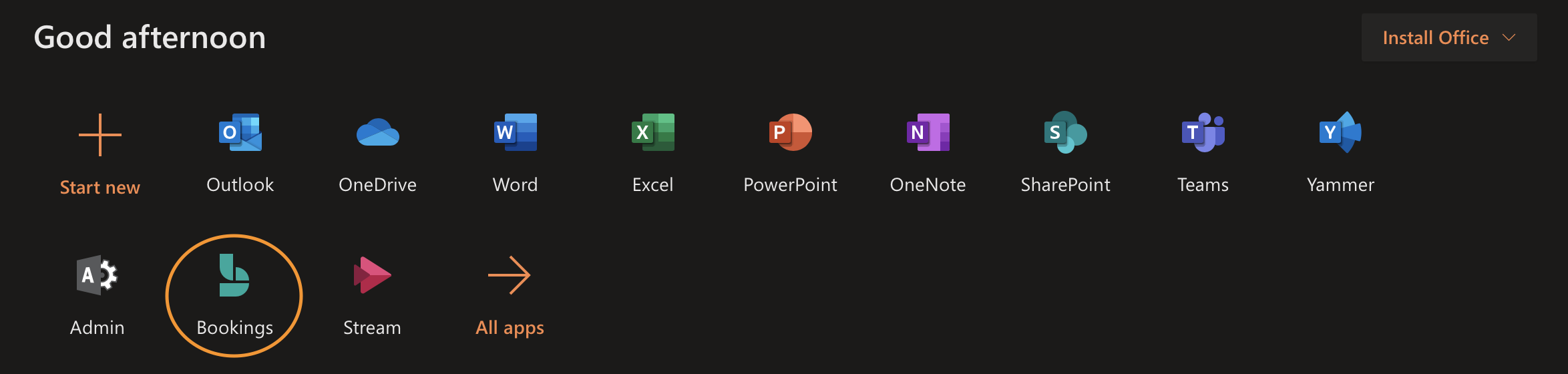
Turn on the Bookings feature for the tenant (if turned off). The Bookings feature is turned on by default. If it has been turned off for any reason, please re-enable it in the Admin Portal.
How to enable Bookings in your tenant: Navigate to the Microsoft 365 admin center > Settings > Settings > Bookings and make sure you “allow your organization to use Bookings.” See below:
Make Sure All Users Have the Appropriate License
The supported licenses for Bookings are: A3, A5, E3, E5, or Business Premium.
Ensure the Microsoft Business Apps (Bookings) License Is Assigned to Individual Users
The Bookings app requires the Bookings license — called Business Apps — to be assigned to users before they can access the service. Business Premium, A3, and A5 licensed users already have this license turned on by default. For Microsoft Enterprise customers with E3 and E5 licenses, admins can acquire and assign Business Apps ($0.00) licenses to all users who need the app.
This is the information that will appear in your public schedule and in the footer of appointment invites sent to patients. You can create multiple “businesses” if needed — for example, one per location, one per clinic, or one per region. Each can have different contact information and a different set of doctors on the schedule.
If your call center will be fielding all calls and creating all appointments, these policies are less critical. However, if you plan on publishing your schedule to the public, pay close attention here — you want to ensure your doctors have enough lead time for each visit and appropriate buffer time between appointments.
This is where you set up your appointment types — an important step for both in-house scheduling and public-facing scheduling. Each appointment type can have a custom invite template and a standard duration. For example, an initial appointment might be 30 minutes, while a COVID-19 screening is only 15 minutes.
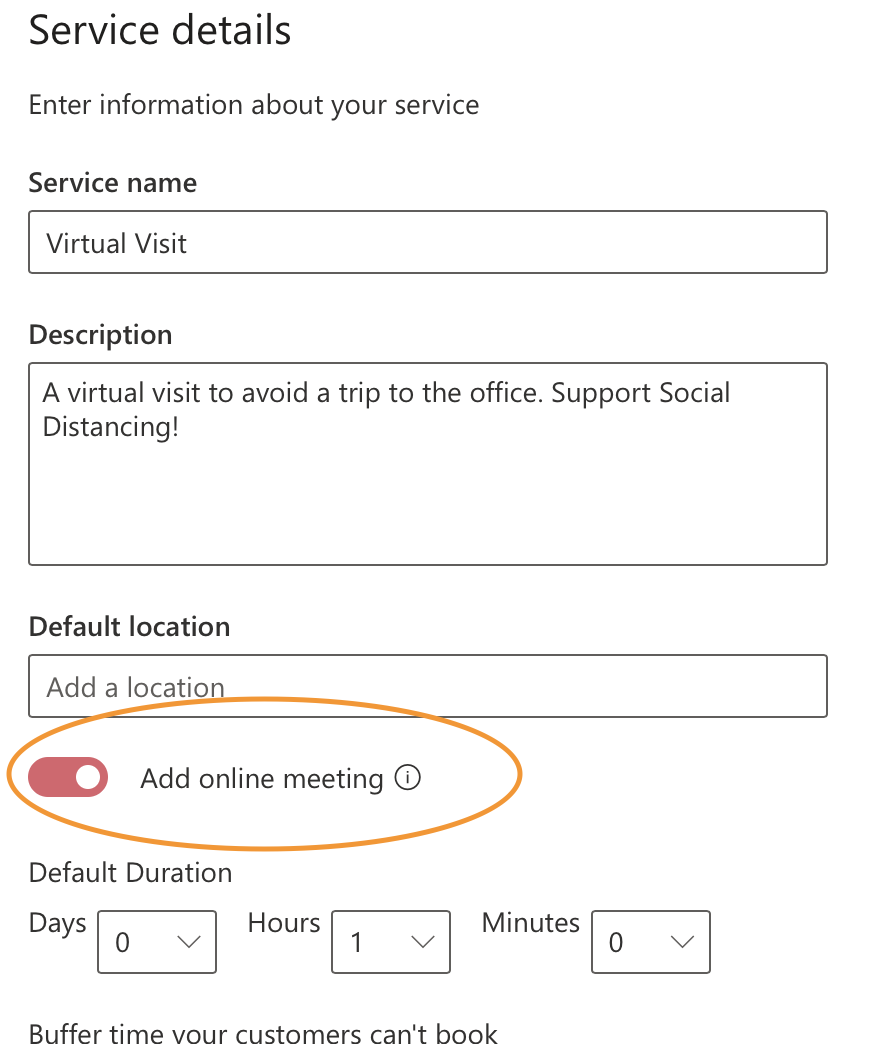
VERY IMPORTANT: When setting up each service, make sure you toggle the setting to “add online meeting.” See the screenshot below for where to find this toggle:
You can also include preparation instructions for each appointment type — for example: “Be sure to have your insurance card ready” or best practices for joining the meeting.
Microsoft has seen many customers create a public landing page with virtual visit instructions. Below is an example of what you might want to include:
When Joining a Virtual Visit at XYZ Hospital or Clinic, There Are 2 Ways to Join:
From Your Desktop
Both Windows and Mac OS are supported. The recommended way to join is using a supported web browser. Supported browsers include:
Microsoft Edge
Google Chrome
Safari (support coming soon)
Firefox (not supported)
Mobile Phone
Apple: Go to the App Store and download the Microsoft Teams app
Android: Go to the Play Store and download the Microsoft Teams app
When adding staff or doctors to the business, there are two roles to choose from:
Admin Role: Admins can access that business through the Bookings app and schedule appointments. This role is required for schedulers.
Viewer Role: Viewers can only view and join appointments through their Microsoft Teams or Outlook calendar. They are not expected to use the Bookings app for scheduling. This role is recommended for doctors.
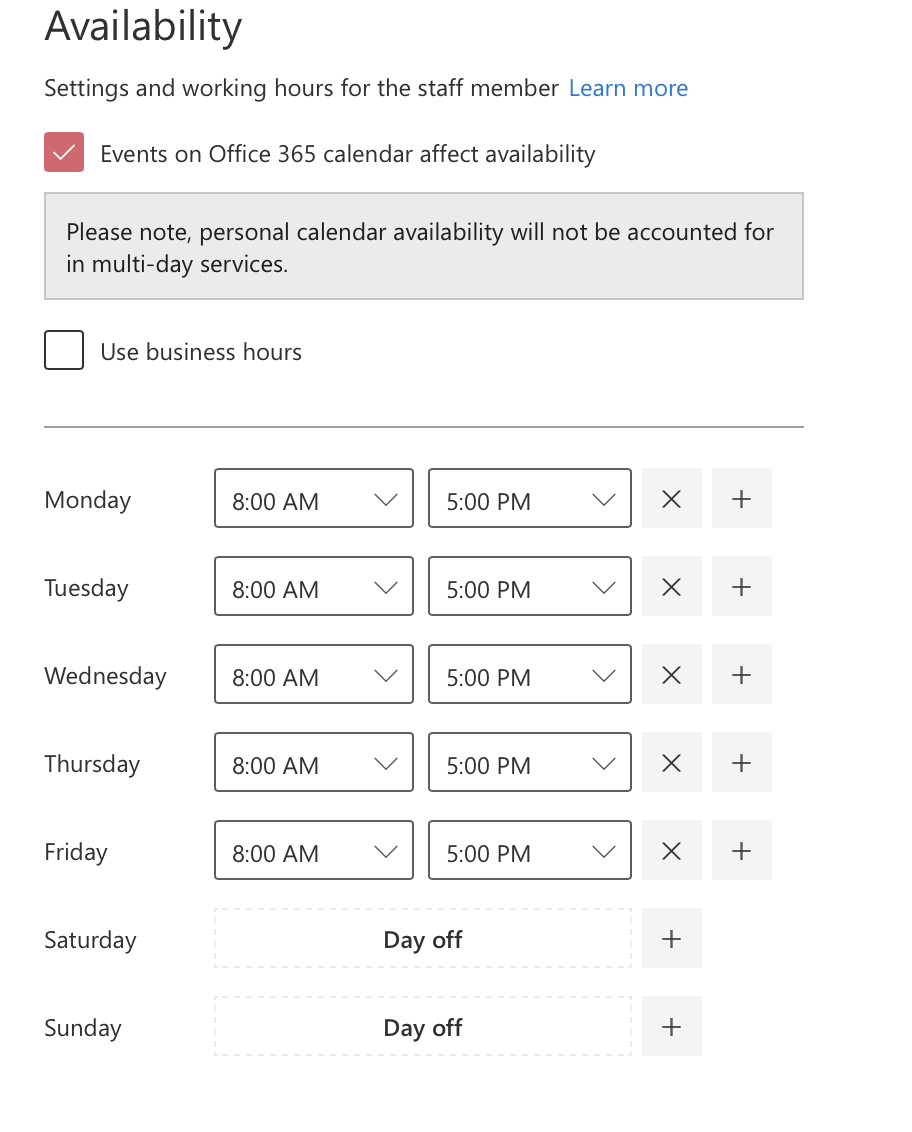
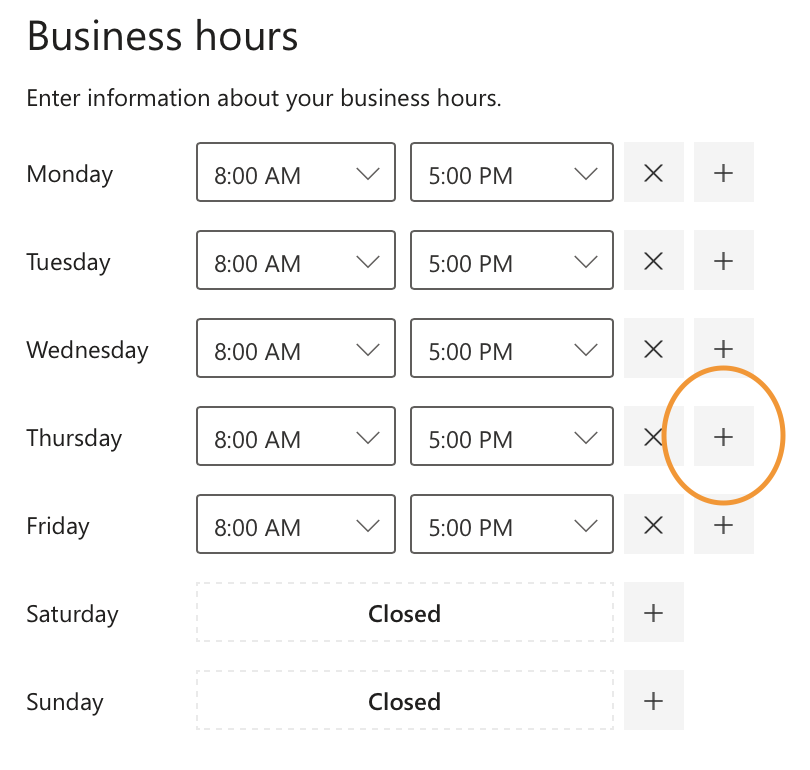
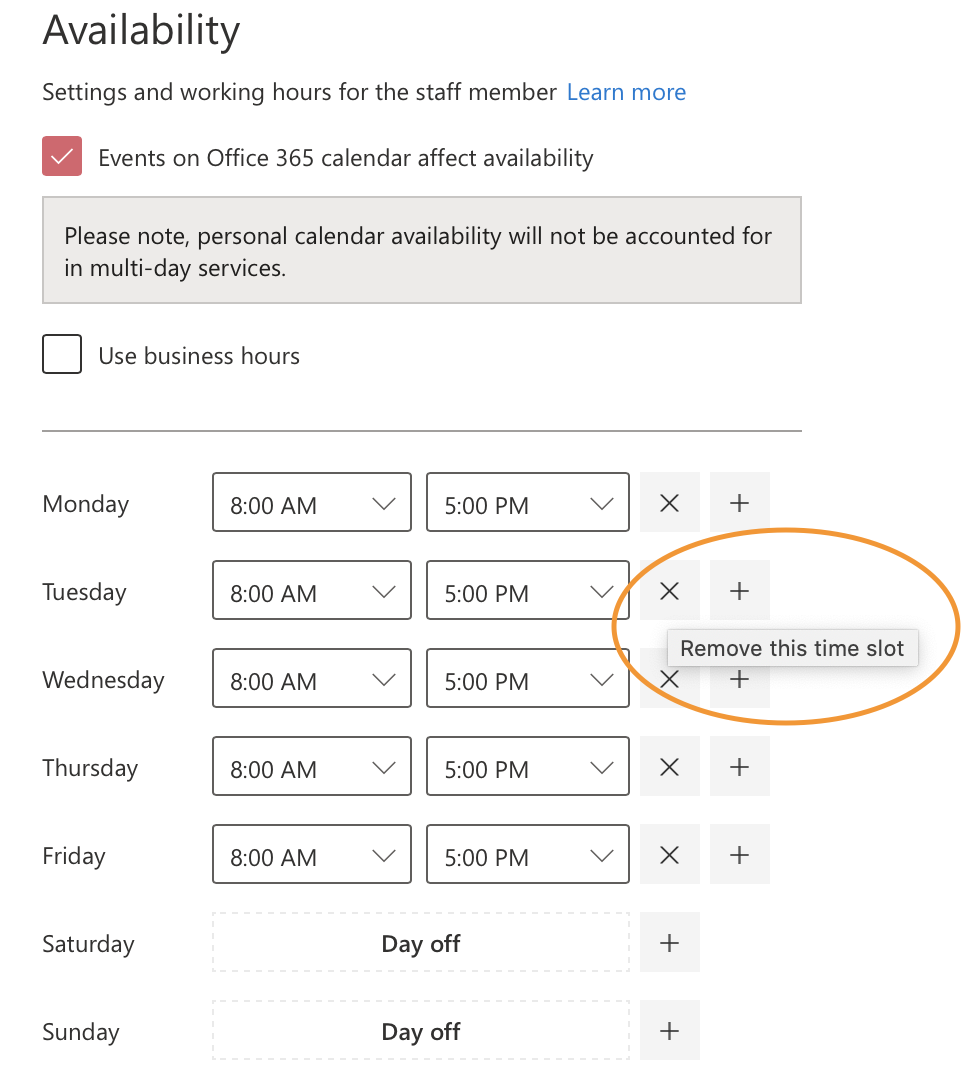
Each business can have working hours that apply to all doctors, or each doctor can have unique working hours. If you have day shift and night shift doctors, update each individual doctor’s hours accordingly.
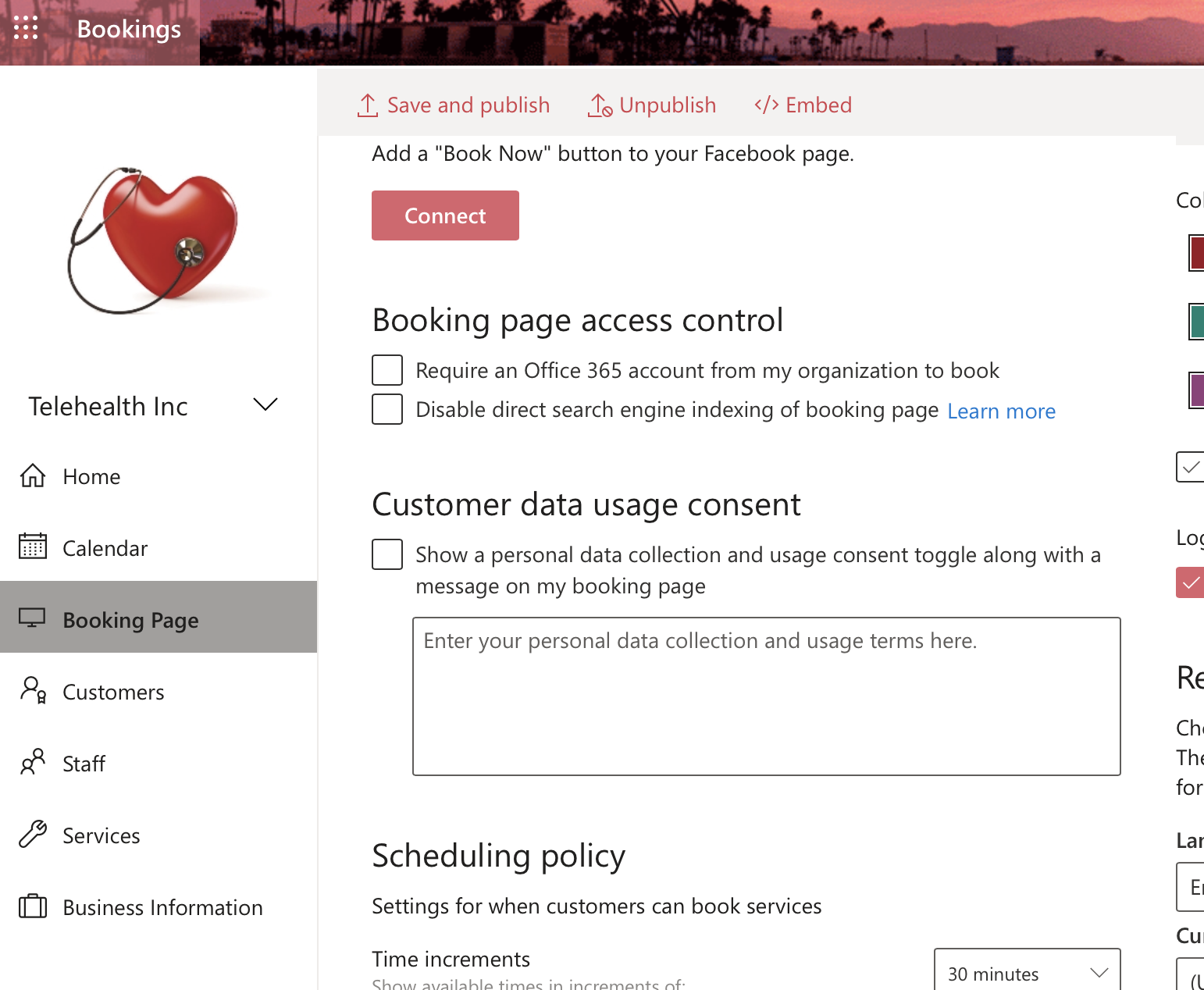
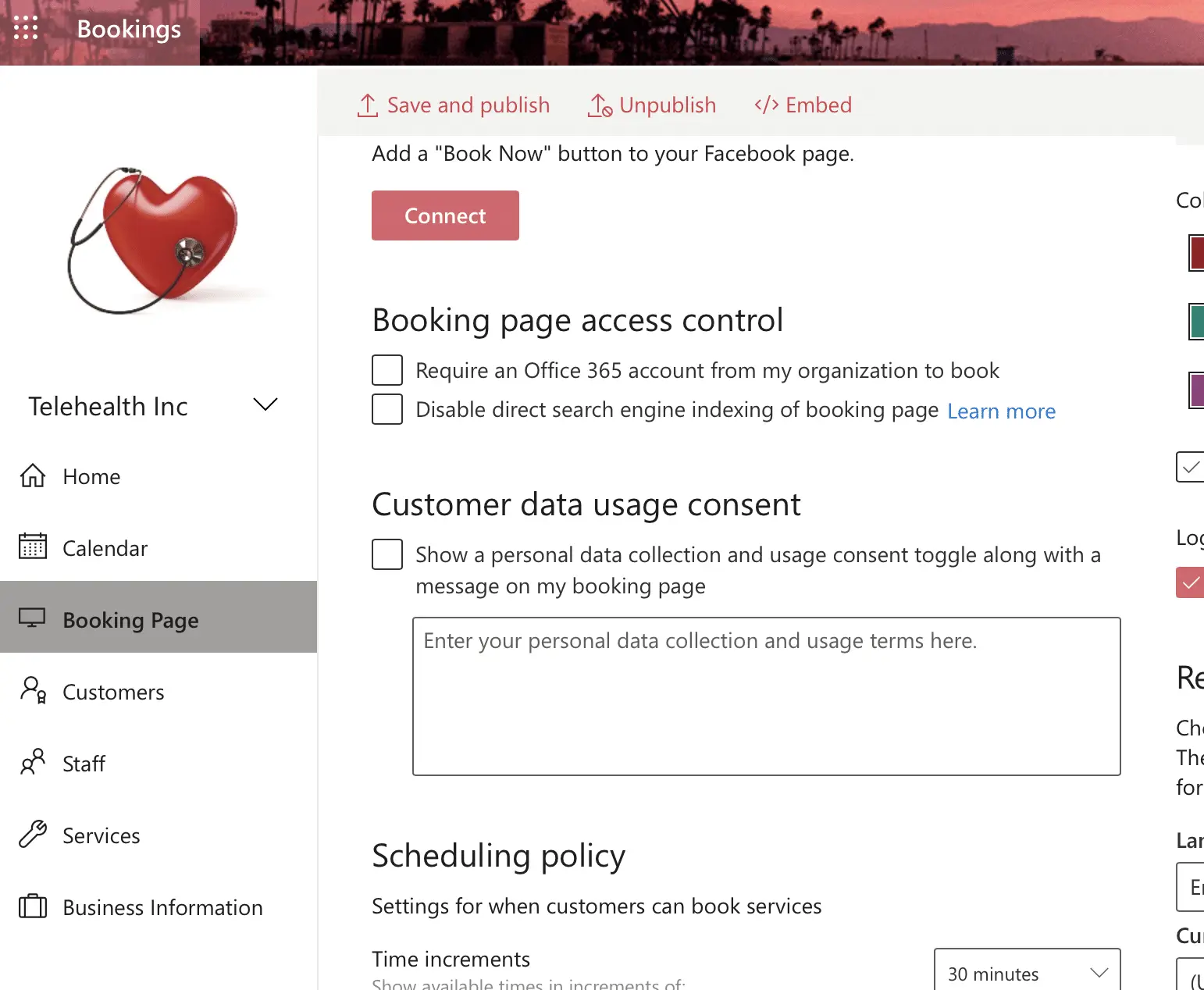
If your hospital or clinic wants a public page for patients to self-schedule virtual visits, you can publish this page and share it on social media or embed it on your website. If you prefer to have only your internal call center or schedulers booking appointments, do not publish this page.
If you do go public, a web designer can do a lot to make this page stand out. Check out this article from Microsoft to see all the options for customizing your public Bookings page.
How to Embed Bookings into a Microsoft Teams Channel
Now that Bookings is set up, it’s recommended to use Microsoft Teams as the hub for your schedulers. Here are the recommended steps for setting up that Team:
Create a Team for your schedulers
Add channels for each “business” in Teams
Pin each business’s Bookings calendar as a tab in their channel
Add your schedulers to the Team
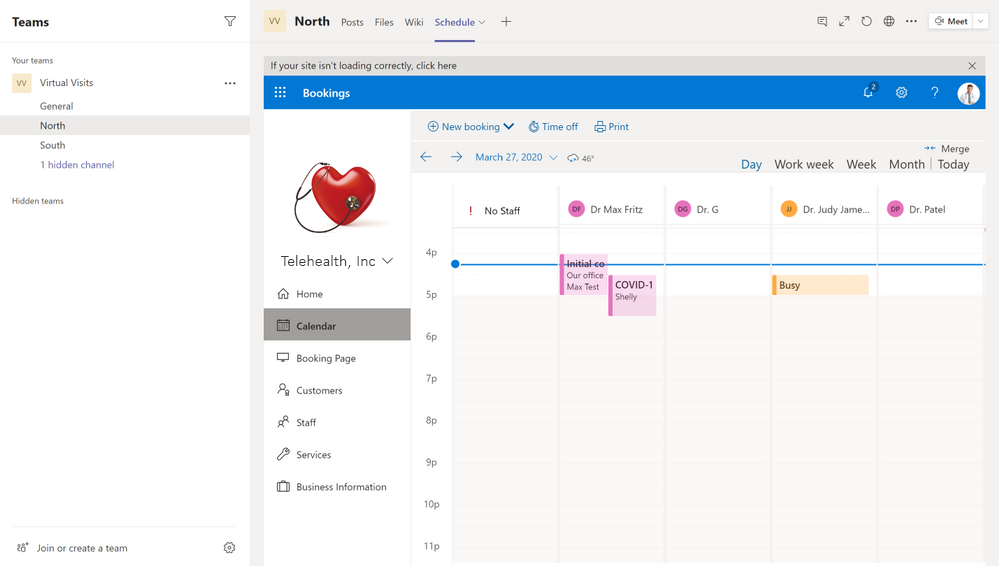
Your team structure could look something like this:
You can then embed the Bookings URL as a tab within each channel. When you open the team and go to that tab, you can view the full schedule. Each channel can have its own business’s schedule pinned, so schedulers can quickly navigate to the right calendar. Team conversations can be used to communicate about schedule changes or availability updates.
How to “Pin” Bookings as a Microsoft Teams App
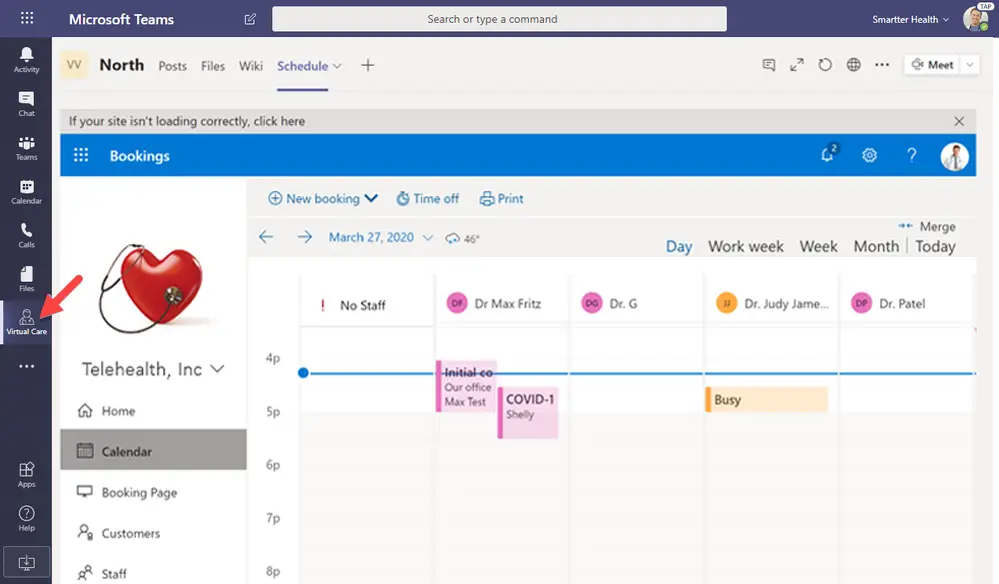
Just like the default applications you see on the left sidebar in Teams, you can add Bookings as a pinned app for your users. To do this, you will use App Studio for Microsoft Teams:
Once complete, your users will have an app available that looks like this:
Need Help Getting This Set Up for Your Practice?
We hope these steps help you leverage Microsoft Bookings to connect with your patients more efficiently. If your practice needs support implementing these tools in a way that stays fully HIPAA-compliant, WheelHouse IT is here to help. We work with healthcare organizations across South Florida and New York to make sure their technology works as hard as they do.
Contact WheelHouse IT today or visit our Healthcare IT Support page to learn more about how we support medical practices.